

10 Best Small Business Collaboration Software Review 2026

Best Small Business Collaboration Software Shortlist


Choosing the right collaboration software for your small business is tough with so many options out there. You want to improve communication, manage tasks, and boost productivity, but need to figure out which tool fits best. I've got you!
Drawing from my years of experience managing digital projects and using various collaboration tools, I'll help you find the best options. These tools facilitate team communication, task management, and file sharing. They help you stay organized, meet deadlines, and reduce miscommunication.
Why You Can Trust Us
We’ve been testing and reviewing project management software since 2012. As project managers ourselves, we know how critical and difficult it is to make the right decision when selecting software.
We invest in deep research to help our audience make better software purchasing decisions. We’ve tested more than 2,000 tools for different project management use cases and written over 1,000 comprehensive software reviews. Learn how we stay transparent & our software review methodology.
Best Small Business Collaboration Software Summary
| Tool | Best For | Trial Info | Price | ||
|---|---|---|---|---|---|
| 1 | Best for shared inbox management | 30-day free trial + free plan available + free demo available | From $14/user/month (billed annually) | Website | |
| 2 | Best for comprehensive productivity tools | 14-day free trial available | From $7/user/month (billed annually) | Website | |
| 3 | Best for team collaboration and task management | 14-day free trial + free demo available | From $45/month (billed annually) | Website | |
| 4 | Best for integrated Office 365 collaboration | 30-day free trial | From $4/user/month (billed annually) | Website | |
| 5 | Best for built-in video meetings | 14-day free trial | From $9/user/month (billed annually) | Website | |
| 6 | Best for visual task management | Free plan available | From $5/user/month (billed annually) | Website | |
| 7 | Best for infinite canvas collaboration | Free plan available | From $8/member/month (billed annually) | Website | |
| 8 | Best for team communication and integrations | Free plan + free demo available | From $7.25/user/month (billed annually) | Website | |
| 9 | Best for customizable project management | 15-day free trial + free plan + free demo available | From $4/user/month (billed annually) | Website | |
| 10 | Good for spreadsheet-based project management | 30-day free trial + free demo available | From $9/user/month (billed annually) | Website |


-

Celoxis
Visit WebsiteThis is an aggregated rating for this tool including ratings from Crozdesk users and ratings from other sites.4.4 -
Smartsheet
Visit WebsiteThis is an aggregated rating for this tool including ratings from Crozdesk users and ratings from other sites.4.5 -
Accelo
Visit WebsiteThis is an aggregated rating for this tool including ratings from Crozdesk users and ratings from other sites.4.4




Best Small Business Collaboration Software Reviews
This section provides an in-depth analysis and overview of various small business collaboration software. We will walk through the pros and cons of each tool, their features, and their best use cases.
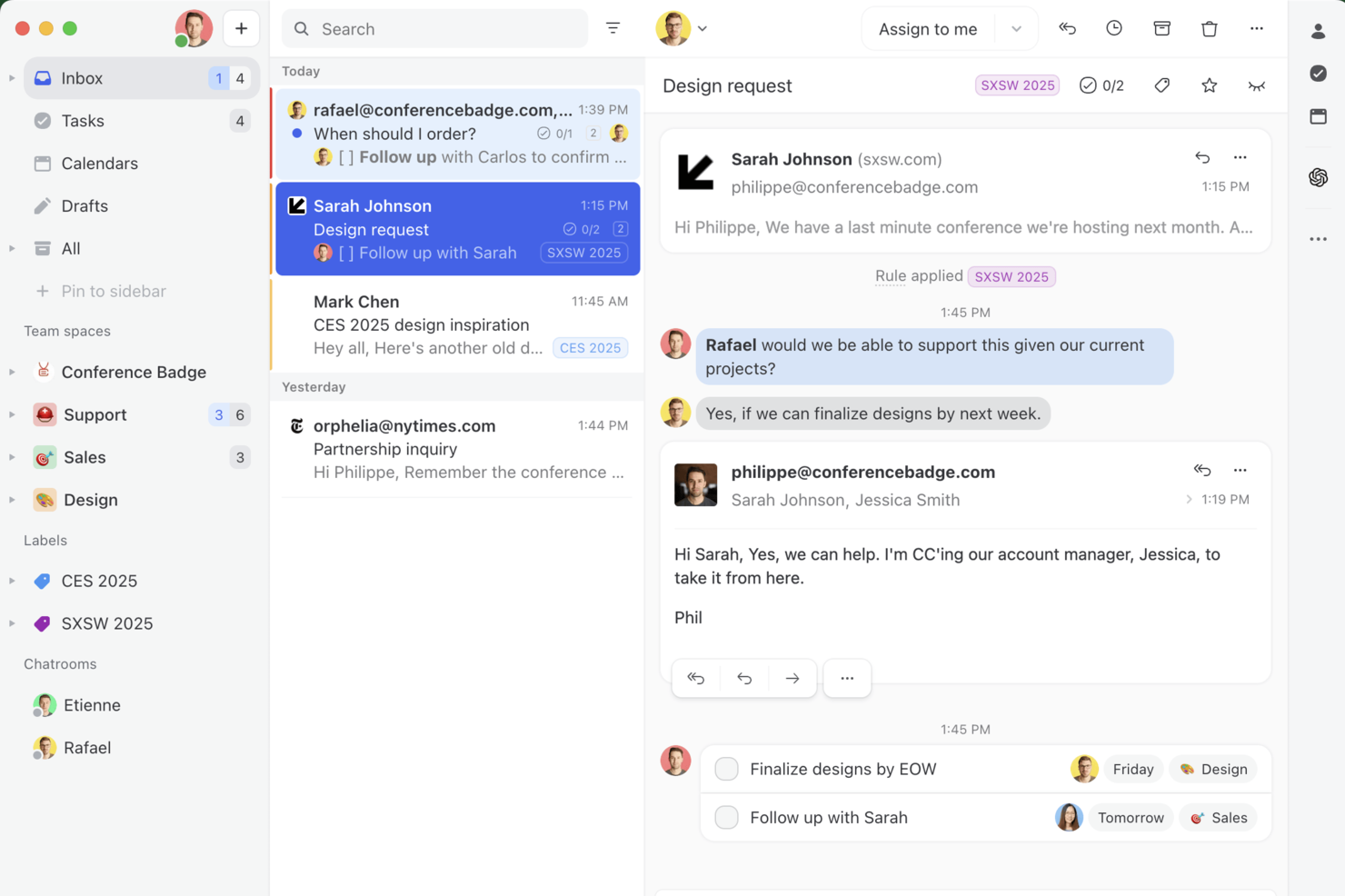
Missive is a team inbox and collaboration platform where small businesses can handle email, internal chat, task management, and multi-channel messaging from a single, unified interface.
Who Is Missive Best For?
Missive is a strong fit for small teams and growing businesses that manage high volumes of customer-facing email across multiple accounts or channels.
Why I Picked Missive
I've included Missive in my top picks because it solves the core problem with shared inboxes: no one knows who's handling what. With per-person read states, you can see exactly whether a specific teammate has read a message, not just whether the inbox has. Pair that with conversation assignments and internal comments directly inside email threads, and my team stops relying on forwarded chains or Slack screenshots to coordinate a reply.
Missive Key Features
- Collaborative email drafting: Multiple teammates can write and edit a single email reply together in real time before it's sent.
- Team chatrooms: Create dedicated chat channels organized by topic, project, or team for ongoing internal conversations.
- Rules and automation: Set up automatic conversation routing, assignments, and labels based on sender, subject, or keywords.
- Canned responses: Save and reuse pre-written replies to handle common questions without rewriting the same message repeatedly.
Missive Integrations
Missive offers native integrations with HubSpot, Salesforce, Pipedrive, Trello, Asana, ClickUp, Shopify, GitHub, Slack-alternative Aircall, and Zoom, along with CRM tools like Close and file-sharing through Dropbox and Google Drive. It connects with Zapier, as well as Make and Integrately for additional automation, and provides an API for building custom integrations.
Pros and Cons
Pros:
- Rule-based automations for inbox sorting
- Combines email, chat, and tasks natively
- Internal comments live inside email threads
Cons:
- Mobile app less polished than desktop
- Search filters lack advanced options
New Product Updates from Missive
Missive Adds New AI Models and Configurable Label Suggestions
Missive added Sonnet 5 and Opus 4.8 to its AI model picker and introduced configurable label suggestions for comments. The updates give teams more control over AI-assisted writing and how labels are triggered during collaboration. For more information, visit Missive’s official site.
 .
.

Google Workspace makes my shortlist because it brings together productivity tools that genuinely support small business collaboration—everything from shared drives to Docs, Sheets, and team chat flows naturally together. I recommend Google Workspace when I see teams who need quick, reliable switching between email, video meetings, and live editing with colleagues or clients.
What I appreciate most is how you can co-edit documents in real time and comment across multiple files without worrying about syncing or version control. When I’ve worked with distributed teams, the platform really shines by letting everyone contribute equally—especially for businesses that want instant communication and document sharing all in one place.
Google Workspace’s Best For
- Small businesses that need tightly integrated docs, email, and meetings in one platform
- Distributed teams who collaborate daily on shared files, presentations, and quick video calls
Google Workspace’s Not Great For
- Teams that need advanced project management, task dependencies, or timeline tracking
- Organizations with strict privacy or data residency requirements beyond the standard Google setup
What Sets Google Workspace Apart
What stands out to me about Google Workspace is how it assumes collaboration should flow through shared documents and communication tools, not isolated task boards. Unlike Microsoft 365, which tries to cover both classic productivity and project tracking, Google puts everything into cloud-native files that multiple people can edit at once without friction.
It’s clear the platform expects work to happen organically—teams are always in the same space, picking up context through Gmail, Calendar, Docs, and Meet as they go. The focus is on live co-editing, instant feedback, and quick information sharing rather than rigid workflows or heavy process layers.
Tradeoffs with Google Workspace
Google Workspace optimizes for everyone working in the cloud on shared files and conversations, but that means it lacks the built-in structure for tracking deliverables or project timelines. Teams tend to compensate by creating their own workarounds, which can get messy if they need accountability or complex project oversight.
Pros and Cons
Pros:
- Strong security features
- Real-time collaboration
- Wide range of applications
Cons:
- Can be complex to set up
- Requires internet access
New Product Updates from Google Workspace

Google Workspace Enhances Email Proofreading In Gmail
Google Workspace introduces enhanced email proofreading in gmail. This update uses gemini to refine drafts for clarity, tone, and conciseness before sending. For more information, visit Google Workspace’s official site.
 .
.

ProofHub makes my list because I see small teams consistently use it as their digital workspace for managing projects and conversations together. I recommend ProofHub when teams hit friction using multiple tools for communication, task tracking, and file sharing, and need one place that brings everything together.
What I appreciate most is how ProofHub combines task boards, discussion threads, and feedback tools right alongside document proofing. I think it shines when you want to eliminate siloed conversations and have projects, updates, and collaboration side-by-side—especially when the whole team needs constant context on what everyone is working on.
ProofHub’s Best For
- Small businesses that want project management, discussions, and proofing all in one place
- Creative teams that need feedback, file sharing, and task coordination for daily collaboration
ProofHub’s Not Great For
- Companies that need deep, customizable automation or very advanced reporting
- Large organizations looking for complex resource management or integrations with lots of external systems
What Sets ProofHub Apart
What jumps out for me with ProofHub is how it treats collaboration as something fully embedded, not piecemeal. You don’t have tasks in one place and conversations in another—everything is shared right from a central workspace. Unlike tools like Asana that focus first on tasks and add communications sparingly, ProofHub expects you to keep discussions, feedback, and work artifacts side by side and visible to everyone. That approach feels more like a digital project room than a typical project management setup.
Tradeoffs with ProofHub
Because ProofHub puts such a strong emphasis on shared workspaces, you trade off some depth in workflow automation and reporting. Teams that rely on advanced custom workflows or granular analytics may feel boxed in, since the platform keeps things intentionally simple to keep everyone on the same page.
Pros and Cons
Pros:
- No per-user fee
- Comprehensive features
- Flat pricing
Cons:
- No free tier
- Limited storage on lower plans


Microsoft Teams earns its place here because I think it’s the most logical choice if your business already lives in Office 365 apps. I see small teams who rely on Word, Excel, and Outlook getting real collaboration gains as everything links together natively.
What I appreciate is how you can launch meetings, co-edit files, and pull in OneNote or SharePoint documents—all within the chat. This "all-in-one workspace" approach means you’re not jumping between tools, and the productivity lift gets obvious fast when you’re deep into project work.
Microsoft Teams’ Best For
- Businesses that already use Office 365 apps and want deep, native integration
- Teams that need real-time chat, meetings, and file co-editing in one place
Microsoft Teams’ Not Great For
- Small businesses that don’t use Microsoft tools or want to avoid vendor lock-in
- Teams looking for advanced task management or Kanban-style project tracking
What Sets Microsoft Teams Apart
What I find unique about Microsoft Teams is how it treats chat, meetings, and file sharing as a unified experience inside the Office 365 environment. It expects teams to stay anchored to Microsoft tools, so collaboration happens directly around shared Word, Excel, and PowerPoint documents without switching platforms.
Compared to Slack, which focuses on open-ended conversations, Teams assumes you want threaded discussions tightly linked to calendars, files, and persistent meeting spaces. The platform is designed to make work revolve around document collaboration and scheduled touchpoints rather than just ad hoc chats.
Tradeoffs with Microsoft Teams
Teams puts a premium on tight Office 365 integration, but what tends to suffer is flexibility outside that ecosystem. When your team needs advanced planning, lightweight project management, or is blending in non-Microsoft apps, the experience can start to feel limiting.
Pros and Cons
Pros:
- Comprehensive collaboration tools
- Robust video conferencing
- Integrated with Office 365
Cons:
- Requires Office 365 subscription
- Complex setup

Redbooth stands out for me because its built-in video meetings are tightly integrated with task and project management. I find this especially useful when small teams need to jump into face-to-face conversations without switching between tools or managing external video accounts. What I appreciate most is how video calls connect directly to workspaces, so teams can quickly resolve blockers, discuss updates, and return to their work without disruption. I’ve seen Redbooth work best in scenarios where collaboration and real-time discussion need to happen side by side, like during sprint planning or urgent client check-ins.
Redbooth’s Best For
- Small businesses that want project management and video meetings in one tool
- Teams who hold frequent on-the-fly video check-ins linked to tasks
Redbooth’s Not Great For
- Groups needing complex workflow automation or granular permissions
- Large companies that require highly customized reporting or integrations
What Sets Redbooth Apart
What jumps out about Redbooth is how it weaves video meetings right into the core workflow, not as an add-on or integration. Unlike tools like Asana, which keep collaboration mostly text-based, Redbooth invites teams to solve things face-to-face without ever leaving their project environment.
Instead of organizing around endless threads and comment trails, Redbooth expects teams to use video calls as a default touchpoint for tackling blockers and syncing up. That creates a different cadence—frequent live conversations over back-and-forth updates.
Tradeoffs with Redbooth
Redbooth optimizes for teams that want immediate, direct communication baked into their projects, but this approach leaves less room for advanced automation and detailed tracking. What usually happens is teams gain speed in collaboration but outgrow the tool if their needs shift toward granular project analysis or process control.
Pros and Cons
Pros:
- Task dependencies and subtasks help in breaking down complex projects
- Multiple project views
- Customizable workspaces allow for tailored project management
Cons:
- Could offer more advanced analytics
- Limited storage in lower-tier plans


Trello makes my shortlist because it nails visual task management for small teams who juggle lots of moving parts. When I see a business running on sticky notes, spreadsheets, or endless email threads, I often recommend a switch to Trello’s boards, lists, and cards.
What I really appreciate is how the drag-and-drop Kanban boards quickly bring much-needed clarity and simplicity to projects. It’s the flexibility of these visual boards that lets different collaborators organize and track tasks in a way that sticks, literally seeing work move from idea to done.
Trello’s Best For
- Small businesses that need visual boards to organize team collaboration
- Teams managing workflows that benefit from a flexible, card-based Kanban approach
Trello’s Not Great For
- Project teams that require advanced task dependencies or detailed reporting
- Organizations needing structured, process-driven workflows with strict approvals
What Sets Trello Apart
Trello thinks about work as a series of visual building blocks that you move, stack, and rearrange as projects evolve. Where Jira expects you to define complex issue types, workflows, and reporting from the start, Trello expects collaboration to happen through quick, visual updates—dragging cards, adding checklists, and using automations to keep things moving.
Unlike platforms like Asana that lean hard into tasks, subtasks, and dependencies, Trello assumes most teams just need a flexible space to organize and prioritize with minimal process. I find Trello shines when teams are comfortable letting their boards organically adapt as their projects and collaboration styles change.
Tradeoffs with Trello
Trello optimizes for flexibility and simplicity, but as teams scale or projects get more detailed, structure and accountability tend to break down fast. What usually happens is boards get messy, making it tough to enforce consistent review or track nuanced progress without adding add-ons or shifting to a more structured platform.
Pros and Cons
Pros:
- Extensive integrations
- Flexible task management
- Intuitive visual interface
Cons:
- Can be overwhelming for large projects
- Limited advanced features
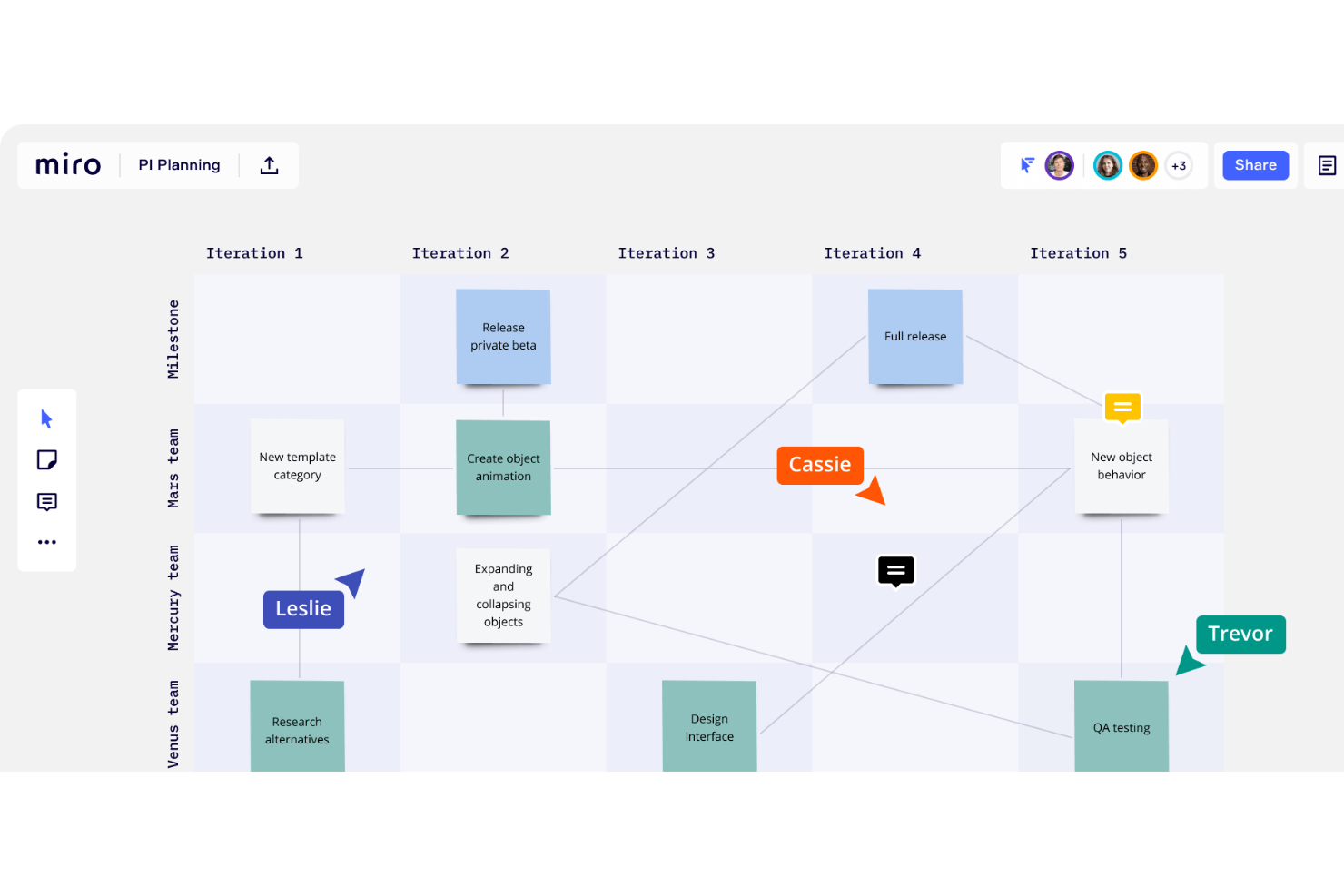
Miro makes my shortlist because I keep seeing small teams unlock new ways to brainstorm and map out projects together once they try it. When you need a single place to drop sticky notes, diagrams, and team feedback in real time, nothing else feels as open.
I appreciate how the infinite canvas lets teams visually connect thoughts or build shared mindmaps without running out of space. This setup is especially useful during planning sessions or sprint retros, where you can see every idea, vote, and decision evolve right in front of you.
Miro’s Best For
- Design, product, and strategy teams needing visual collaboration on a shared canvas
- Small groups running live brainstorming, wireframing, or retrospective workshops
Miro’s Not Great For
- Teams that want structured task tracking or traditional project management features
- Groups needing granular permissions or rigid workflow rules
What Sets Miro Apart
What stands out to me about Miro is how it lets teams think visually from the very first interaction. Unlike something like Asana, which puts structure and tasks up front, Miro assumes the most important thing is to give every idea visual space to breathe.
Evaluating other tools like Lucidchart, I find Miro doesn’t limit you to traditional flowcharts or diagrams. Instead, you get an endless whiteboard that encourages freeform mapping, sticky notes, sketching, and collaboration all on one digital canvas.
Tradeoffs with Miro
Because Miro optimizes for infinite flexibility and visual exploration, there’s no built-in structure to tie discussions directly to action items or deliverables. What usually happens is teams run amazing workshops but then need another tool to manage follow-up tasks or ongoing project work.
Pros and Cons
Pros:
- Offers an infinite whiteboard canvas
- Real-time and asynchronous collaboration
- Customizable templates for unique team needs
Cons:
- Advanced security features, like SSO, are only available on higher-tier plans
- Not ideal for teams that don't require visual collaboration
New Product Updates from Miro
Miro Adds Japan Data Residency for Enterprise Customers
Miro has introduced Japan data residency for enterprise customers, offering in-region storage for production data, backups, and metadata, plus in-region compute infrastructure. For more information, visit Miro's official site.


Slack makes my shortlist because it’s become the go-to space for keeping teams connected in real time—especially when projects cross locations and disciplines. I like recommending it when group email threads or scattered DMs make it tough to keep a pulse on what’s actually happening day to day.
What stands out for me: it's easy to spin up channels for specific topics, onboard new team members, and loop in apps like Google Drive or Asana right where conversations are already happening. I consistently see small businesses using threaded conversations and @mentions to resolve roadblocks and decisions much faster than they could through email threads.
Slack’s Best For
- Small businesses that value fast, transparent team discussions in channels
- Teams that rely on integrating third-party apps for project updates and notifications
Slack’s Not Great For
- Teams that need formal task management or project planning features in one place
- Businesses requiring strict process controls or highly structured approval workflows
What Sets Slack Apart
What jumps out to me about Slack is how it approaches conversation as the core unit of collaboration, rather than tasks or files. Instead of trying to compete with ClickUp or Asana on project structure, Slack expects teams to orient around transparent channel discussions, quick decisions, and connected app integrations that flow into the chat in real time.
This is different from more process-driven platforms like Microsoft Teams, which layer channels around existing project and document frameworks. Slack puts the spotlight on immediacy and bringing scattered conversations front and center, making it feel more like a digital office than a dashboard.
Tradeoffs With Slack
Slack optimizes for open conversation and speed, which means important decisions and updates can quickly get buried in noisy channels. What I see is that unless teams build ways to surface or document outcomes, context and accountability can slip through the cracks as messaging volume ramps up.
Pros and Cons
Pros:
- Robust messaging features
- User-friendly interface
- Extensive integrations
Cons:
- Limited free plan
- Can be expensive
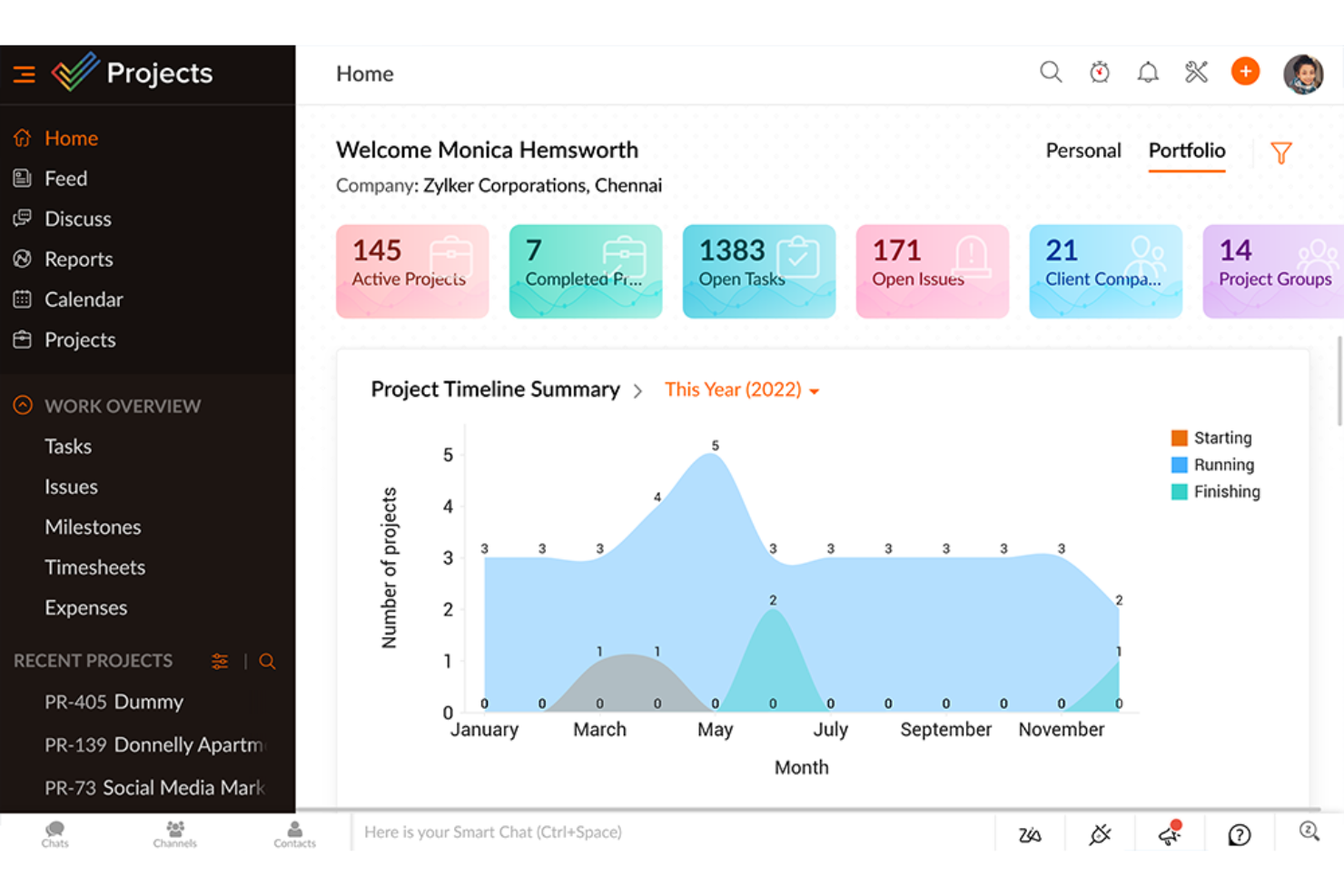
Zoho Projects stands out on my shortlist because its customization options go deeper than most project management tools I’ve used with small business teams. I tend to recommend it when your team outgrows plug-and-play templates and needs more control over task structures and workflow automations.
What I appreciate most is how you can adapt task fields, workflow rules, and dependencies to match how your team actually works. The built-in blueprint tool gives you step-by-step control over process stages, which I’ve seen make detailed, cross-functional projects much easier to keep coordinated.
Zoho Projects’ Best For
- Small businesses that need to customize every project detail and workflow step
- Teams who run process-driven projects across multiple departments or clients
Zoho Projects’ Not Great For
- Teams that prefer simple, out-of-the-box project setups
- Groups who rarely adjust workflows or need minimal process structure
What Sets Zoho Projects Apart
What I find unique about Zoho Projects is how deeply it lets teams define their own work structures—down to custom fields, task types, and layered workflow automations. Where a tool like Asana expects you to fit into its predefined task and project templates, Zoho Projects gives you more space to mirror your actual processes, especially as business needs change.
It encourages teams to formalize and build out repeatable processes using blueprint workflows. This makes it especially suited to businesses that value process precision or need to enforce unique project steps that aren’t possible in more rigid platforms.
Tradeoffs with Zoho Projects
By optimizing for customization and process accuracy, Zoho Projects expects teams to spend time configuring every detail. What usually happens is that the initial setup takes more effort, which can slow down teams that just want to get a project up and running quickly.
Pros and Cons
Pros:
- User-friendly interface
- Affordable pricing
- Extensive customization options
Cons:
- Limited integrations
- Difficult settings navigation
New Product Updates from Zoho Projects

Zoho Projects Adds Time Log Grid View for Faster Tracking
Zoho Projects adds Time Log Grid View, a unified interactive grid for logging and reviewing hours across tasks and issues, helping teams enter time faster and identify work patterns more easily. For more information, visit Zoho Projects’ official site.
 .
.

I include Smartsheet here because small businesses with spreadsheet-heavy workflows often hit a wall with traditional docs and file sharing. When I see teams still tracking collaboration in Excel or Google Sheets but needing more process, Smartsheet feels like a natural next step.
What stands out for me is how it lets you build collaborative grids, dashboards, and automated update requests—so you get detailed project tracking without abandoning familiar spreadsheet logic. I like that it keeps the entry point low for spreadsheet fans but gives you the tools to run real project management at scale.
Smartsheet’s Best For
- Teams that want project management tied to familiar spreadsheet logic
- Operations, finance, or admin teams who need structured, formula-heavy tracking
Smartsheet’s Not Great For
- Groups who prefer visual task boards or fluid collaboration spaces
- Small teams looking for less structured, informal ways to manage work
What Sets Smartsheet Apart
Smartsheet stands out for how fiercely it sticks to the spreadsheet paradigm, refusing to hide its formula-driven core. Instead of reinventing processes as visual boards like monday.com or forcing structured ticketing like Jira, it lets you build up collaboration from a familiar grid that feels like Excel but with powerful workflow layers underneath. In practice, I see teams managing project plans, resource tracking, and even automated reminders—all while staying inside that row-and-column logic they rely on. This mindset works best when teams already think in terms of data tables and want to expand what spreadsheets can do instead of leaving them behind.
Tradeoffs with Smartsheet
That laser focus on spreadsheet logic is great for consistency but means you don’t get the kind of visual project overviews or flexible workspace layouts found in modern project tools. Teams tend to get everything structured, but collaboration sometimes feels boxed in by the grid and can get clunky for anything less formulaic.
New Product Updates from Smartsheet
Smartsheet Adds Saved Filter Improvements to Table View
Smartsheet adds improved saved filter discovery, filter duplication, and the ability to create saved filters in Table view. These updates make saved filters easier to find and faster to reuse when managing data. For more information, visit Smartsheet’s official site.
Other Small Business Collaboration Software To Consider
Below is a list of additional small business collaboration software that we shortlisted, but did not make it to the top list. Definitely worth checking them out.
- Asana
For goal-oriented project management
- Basecamp
For simple project management
- Paymo
For time tracking and invoicing
- Wrike
Good for iOS & Android collaboration apps
- Freedcamp
Good for free project management
- Podio
Good for customizable workflows
- monday AI Workspace
Good for visual project tracking
- MeisterTask
Good for intuitive task management
- Scoro
Good for business management
- Airtable
Good for customizable databases
- Nifty
Good for project timelines
- Hive
Good for team productivity
- Workzone
Good for document management
- Teamwork
Good for client work management
- JIRA
Good for agile software development
- LiquidPlanner
Good for predictive scheduling


How I Evaluate Small Business Collaboration Software
I look at these tools in two layers: whether they cover the baseline a small team needs to replace scattered emails and drives, then the differentiators that make one a better fit than another.
Core Functionality (Table Stakes For This List)
When I'm selecting tools for my list, I rank each one on a scale from 0 (does not offer the functionality) to 5 (excels in this area) for each core functionality listed below. Then, I calculate the tool's total score into a percentage. Each tool needs to achieve a minimum total score of 65% to be considered for inclusion.
- Real-Time Messaging: I check whether a tool offers channels, threads, and direct messages so teams can discuss project details without bouncing between email and a separate chat app.
- Task & Project Management: Each tool should let you create tasks, assign owners, set due dates, and view work in at least one structured format like a board, list, or calendar.
- File Sharing & Co-Editing: I look at how each platform handles document collaboration—whether you can share files, preview them, and comment or co-edit without downloading and re-uploading.
- Shared Workspaces: Teams need a way to organize conversations, tasks, and files around specific projects or departments, so I evaluate how each tool structures and scopes its workspaces.
- External/Guest Collaboration: For agencies and consultancies sharing deliverables with clients, I look at whether guests can access selected projects without requiring a full paid seat.
- SMB-Friendly Pricing & Scale: I evaluate whether each tool offers a free tier or affordable per-user plans that make sense for teams under 50 people, with self-serve signup and no enterprise-only gates.
Once I have a list of tools that meet this criteria, I consider what sets each platform apart.
Differentiating Factors (What Sets Vendors Apart)
Here's how I compare and contrast different vendors:
Standout Features
No-code automations are a big differentiator—I look at whether a tool lets you auto-assign tasks on status changes or trigger notifications when deadlines shift, which saves lean teams from constant manual follow-up. Time tracking paired with workload views also matters, especially for agencies that need to bill clients and balance capacity without adding a separate tool. I also evaluate client portals and proofing workflows, since service-based teams benefit from sharing deliverables and collecting approvals in the same platform.
Beyond Features
Integration ecosystem is one of the first things I check—small teams rely on Google Workspace, Microsoft 365, or Slack alongside their collaboration tool, and poor connectivity means duplicate work. Onboarding speed also matters a lot. I look for prebuilt templates, importers from tools like Trello or spreadsheets, and in-app guidance so a team can be productive within the first week. Finally, I evaluate mobile apps, because distributed owner-operators and remote coordinators need to approve tasks, respond to threads, and review files from their phone without losing functionality.
How To Choose Small Business Collaboration Software
As you work through your own unique software selection process, keep the following points in mind:
- Ease of Use: An intuitive tool is key for providing a stress-free experience. It enables users to accomplish their objectives quickly and efficiently, regardless of how much resource they’re using or what they’re doing. A quality remote team collaboration tool will enable your team to improve communication and boost productivity. Furthermore, these programs help eliminate distractions and hold people accountable for their work. For example, Slack is an ideal app for instant communication, enabling users to send one-on-one messages or create groups with multiple people. Its chat feature keeps everyone up to date and reduces emails that could otherwise slow down work progress.
- Integrations: Integrations exist that can facilitate team collaboration more effectively. They help eliminate data silos, keep teams aligned on their business goals, and enhance client relationships by enabling employees to focus on strategic work that produces tangible outcomes for the business. When selecting collaboration tools for remote teams, it’s essential to factor in the various integrations available and how they may influence your selection process. For instance, Google Drive integration makes sharing, storing, and accessing files a breeze; plus it sends email notifications when someone comments on a file you own or tags you in a comment – making it simpler to respond directly in an email without having to open the file yourself.
- Scalability: Scalability is the capacity of a technology system to handle increased workloads without needing major re-design or reconfiguration. It’s an underlying principle used by technology architects and C-suite directors when creating their IT stacks and infrastructure. It is essential to select collaboration tools that can grow along with your business. Doing so guarantees your team has access to all necessary information quickly and efficiently, enabling them to get their work done effectively. For example, Basecamp is an intuitive collaboration tool for remote teams that lets you break projects up into any number of subprojects with unlimited users, plus its List, Board, and Graph views allow for optimal organization of documents and projects according to your workflow needs.
- Security: Information security is a paramount concern for any business, and collaboration tools present additional risks that organizations must consider. These platforms could be vulnerable to malware, ransomware, and other threats that could compromise sensitive data and cause productivity losses. When selecting real-time collaboration tools, security should be the top priority. A secure tool will have features like email encryption that guarantees only the recipient has access to sensitive data; additionally, it should have an automatic backup feature which enables quick file restoration in case something goes awry. For instance, selecting a tool with ISO 27001 certification is essential; this guarantees its security measures have been reviewed and certified by an internationally accredited third party.
- Cost: When selecting collaboration tools for remote teams, cost should be taken into account. This is especially pertinent to smaller businesses looking to implement these solutions. When selecting a tool for your team, cost should not be the only consideration. Other features like ease of use, integrations, and security should also be taken into account. For instance, Dropbox can be utilized by teams of all sizes to synchronize and share their files with other members of the team. This makes them more organized and agile by consolidating physical files as well as cloud content into one central location. Furthermore, Dropbox’s platform enables them to collaborate with other team members without ever leaving the Dropbox app itself.
Trends For Small Business Collaboration Software
Small businesses are increasingly relying on collaboration software to stay competitive. Here are some key trends shaping the landscape right now.
- AI-Powered Automation: AI is automating routine tasks, freeing up time for more strategic work. This trend is important as it boosts productivity and reduces human error. Small businesses can now focus on growth rather than mundane tasks.
- Integrated Communication Platforms: Unified communication platforms are merging chat, email, and video conferencing. This integration simplifies communication and reduces the need for multiple tools. It is crucial for maintaining efficient workflows.
- Enhanced Data Security: Data security features are becoming more robust. This trend is vital as it protects sensitive business information from cyber threats. Small businesses can operate with greater peace of mind.
- Mobile-First Solutions: Collaboration tools are increasingly optimized for mobile use. This trend is significant as it supports remote work and on-the-go productivity. Small businesses can stay connected anytime, anywhere.
- Customizable Workflows: Software is offering more customization options for workflows. This trend is interesting as it allows businesses to tailor tools to their specific needs. It enhances the overall user experience.
These trends are shaping the future of small business collaboration software.
What Is Small Business Collaboration Software?
Small business collaboration software is a tool that helps teams communicate, share files, and manage tasks to achieve business goals. It is commonly used by small business owners, managers, and team members to improve communication, coordinate activities, and ensure everyone is aligned on project objectives.
The best online collaboration tools typically include messaging platforms, file sharing capabilities, task management tools, and sometimes video conferencing features. These elements work together to facilitate efficient communication, streamline task assignments, and provide a centralized location for all project-related information.
Features Of Small Business Collaboration Software
Small business collaboration software is essential for enhancing teamwork, communication, and productivity within an organization. Here are some of the most important collaborations features to look for in small business collaboration software:
- Social Networking: Internal communication is organized into channels categorized by topic, allowing employees to view relevant discussions without sifting through unrelated conversations. This feature helps streamline communication and ensures that team members can easily find the information they need.
- Document Management: Cloud-based document management allows team members to collectively draft, edit, and share documents. This feature is crucial for maintaining version control and ensuring that everyone has access to the latest information.
- Powerful Search Engine: A robust search engine enables employees to quickly find public documents or past conversations. This feature reduces the time spent searching for information and helps maintain project momentum.
- Task Management: Effective task management tools help monitor project progress, assign tasks, and set deadlines. This feature ensures that projects stay on track and that team members are aware of their responsibilities.
- Smooth User-Interface on Any Device: A user-friendly interface that works on both desktop and mobile devices is essential. This feature ensures that employees can collaborate effectively, regardless of their location or device.
- Security Measures: Robust security features, including data encryption, user authentication, and access controls, are vital for protecting sensitive business information. This feature helps prevent data breaches and ensures that only authorized personnel can access critical data.
- Real-Time Communication: Tools for real-time communication, such as instant messaging and video conferencing, are essential for quick decision-making and problem-solving. This feature helps teams stay connected and collaborate more effectively.
- Integration Capabilities: The ability to integrate with other software tools, such as email, calendars, CRM systems, and project management tools, is crucial. This feature ensures that collaboration software can work with existing systems, enhancing overall productivity.
- Customization Options: Customization options allow businesses to tailor the software to their specific workflows and needs. This feature ensures that the tool can adapt to the unique requirements of the organization.
- Call/Video Collaboration Features: Video calls, screen sharing, live team chat, and other seamless ways to tackle your to-do lists remotely. This feature ensures that teams can connect in meaningful ways, even when apart.
Choosing the right collaboration software for your small business can significantly impact your team's productivity and overall business success.
Benefits Of Small Business Collaboration Software
In today's fast-paced business environment, small businesses need to stay agile and efficient to remain competitive. Here are five primary benefits of using small business collaboration software:
- Enhanced Communication: Collaboration software provides various communication channels such as instant messaging, video conferencing, and discussion boards, ensuring that team members can easily and quickly share information and ideas.
- Improved Project Management: These tools often come with project management features like task assignments, progress tracking, and deadline reminders, helping teams stay organized and on schedule.
- Increased Productivity: By centralizing all necessary tools and information in one platform, collaboration software reduces the time spent switching between different applications, allowing employees to focus more on their tasks.
- Better Document Management: With features like version control, cloud storage, and real-time editing, collaboration software ensures that all team members have access to the latest documents and can work on them simultaneously without confusion.
- Enhanced Security: Many collaboration tools offer robust security features such as data encryption, user authentication, and access controls, protecting sensitive business information from unauthorized access.
By leveraging these tools, businesses can enhance their operations and better position themselves for growth and success.
Costs & Pricing Of Small Business Collaboration Software
This section provides an estimate of average small business collaboration software plans and costs. The data is based on various sources and reflects common paid plans features.
| Plan Type | Average Price | Common Features |
| Free Version | $0 | Basic design tools, limited storage, basic communication features |
| Personal Plan | $5 - $10 per user/month | Additional storage, advanced design tools, basic project management |
| Business Plan | $10 - $20 per user/month | Enhanced project management, team collaboration tools, integrations with other apps |
| Enterprise Plan | $20 - $50 per user/month | Advanced security features, dedicated support, unlimited storage, custom integrations |
Small Business Collaboration Software FAQs
How can I integrate collaboration software with other tools my business uses?
Most online collaboration tools offer integrations with popular tools such as Google Workspace, Microsoft Office 365, Slack, and CRM systems like Salesforce. Check the software’s integration options in the settings or consult their support documentation. If native integrations are not available, third-party services like Zapier can help bridge the gap between different tools.
What are the security features to look for in collaboration software?
Look for features such as end-to-end encryption, two-factor authentication, and compliance with standards like GDPR or HIPAA. Additionally, ensure the software provides role-based access controls, audit logs, and regular security updates to protect your business data.
Can collaboration software support remote and hybrid work environments?
Yes, most modern collaboration software is designed to support remote and hybrid work environments. Features like video conferencing, real-time document editing, and mobile app access ensure that team members can collaborate effectively regardless of their location.
How do I manage user permissions and access levels in collaboration software?
User permissions and access levels can typically be managed through the software’s admin settings. You can assign roles such as admin, editor, or viewer to control what each user can do within the platform. Regularly review and update these permissions to maintain security and efficiency.
What are the costs associated with using collaboration software for small businesses?
Costs can vary widely depending on the software and the number of users. Many providers offer tiered pricing plans, starting with free or low-cost options for small teams and scaling up for larger organizations. Be sure to consider any additional costs for premium features, integrations, or customer support.
How can I measure the effectiveness of collaboration software in my business?
Track key performance indicators (KPIs) such as project completion rates, time spent on tasks, and user engagement levels. Many collaboration tools offer built-in analytics and reporting features to help you monitor these metrics. Regular feedback from team members can also provide insights into the software’s impact on productivity and collaboration.
What are the common challenges when implementing collaboration software, and how can they be addressed?
Common challenges include user resistance, data migration issues, and integration difficulties. Address these by providing thorough training, ensuring a smooth data transfer process, and testing integrations before full deployment. Regularly solicit feedback and make adjustments as needed to improve user adoption and satisfaction.
How do I ensure my team adopts the new collaboration software effectively?
Effective adoption can be achieved through comprehensive training sessions, clear communication about the benefits, and ongoing support. Encourage team members to explore the software’s features and provide regular opportunities for them to share their experiences and tips. Recognize and reward early adopters to motivate others.
What’s Next?
Want to connect with other digital project managers to share resources and best practices? Join our membership community and get access to 100+ templates, samples, and examples and connect with 100s of other digital project managers in Slack.