40 Best Project Management Software Picked For 2026

20 Best Project Management Software Shortlist
Here's my pick of the 20 best software from the 40 tools reviewed.


The best project management software helps you plan projects, track progress, manage budgets, and collaborate with your team all in one place. Without it, you’re forced to rely on disconnected tools—like spreadsheets, emails, or Slack threads—which makes it harder to manage timelines, prevent scope creep, and keep your team aligned.
After 20 years of experience managing large-scale projects across various agencies and over a decade of writing software reviews, I understand what to prioritize when evaluating project management tools for performance, usability, and scalability. I've tested and compared more than 40 tools to identify those that truly streamline project delivery.
In this guide, you’ll find reliable, purpose-built software that supports planning, tracking, and communication throughout the entire project lifecycle. Each review includes key features, pros and cons, and what makes the tool stand out, so you can choose the software that best aligns with your workflows and management style.
Why Trust Our Project Management Software Reviews
We’ve been testing and reviewing project management software since 2012. As project managers ourselves, we know how critical and difficult it is to make the right decision when selecting software.
We invest in deep research to help our audience make better software purchasing decisions. We’ve tested more than 2,000 tools for different project management use cases and written over 1,000 comprehensive software reviews. Learn how we stay transparent & our project management review methodology.
Best Project Management Tools Comparison Chart
This comparison chart summarizes pricing details for my top project management software selections to help you find the best one for your budget and business needs.
| Tool | Best For | Trial Info | Price | ||
|---|---|---|---|---|---|
| 1 | Best for workflow automation | Free plan available | From $9/user/month (billed annually) | Website | |
| 2 | Best for large projects and scaling | Free plan + free demo + 14-day free trial available | From $10/user/month (billed annually) | Website | |
| 3 | Best for customizable dashboards | Free trial + free demo available | From $9/member/month (billed annually) | Website | |
| 4 | Best for simplified planning and workflows | 14-day free trial + free demo available | From $10/user/month (billed annually) | Website | |
| 5 | Best for end-to-end agency projects | Free 7-day trial available | From $9/user/month (billed annually) | Website | |
| 6 | Best for agency projects and budgeting | 14-day free trial + free demo available | From $9/user/month (billed annually) | Website | |
| 7 | Best for customizable project templates | Free demo available | Pricing upon request | Website | |
| 8 | Best for integration with Zoho Suite | Free plan + free demo available + 15-day free trial | From $4/user/month (billed annually) | Website | |
| 9 | Best for collaborative project management | Free plan available | From $1/user/month (billed annually) | Website | |
| 10 | Best for agencies streamlining sales to delivery | 14-day free trial available | From $12/seat/month (billed annually) | Website | |
| 11 | Best for comprehensive project visibility | 14-day free trial + free demo available | From $6/user/month | Website | |
| 12 | Best for preventing over-allocation | Free 30-day trial available | From $4.16/user/month | Website | |
| 13 | Best for task breakdown | 30-day free trial + free plan available | From $7.65/member/month (billed annually) | Website | |
| 14 | Best for replacing multiple separate tools | Free plan + free demo available | From $7/user/month (billed annually) | Website | |
| 15 | Best for platform versatility | 30-day free trial | From $35/user/month (billed annually, min 20 users) | Website | |
| 16 | Best for portfolio management | 14-day free trial | From $17/user/month | Website | |
| 17 | Best for collaborative whiteboards | Free plan available | From $8/member/month (billed annually) | Website | |
| 18 | Best for creative collaboration | Free plan + free demo + free trial available | From $3/seat/month (billed annually) | Website | |
| 19 | Best for teams using Microsoft 365 | 30-day free trial | From $10/user/month (billed annually) | Website | |
| 20 | Best for customer collaboration management | Free plan available | From $350/month | Website |


-

Insightful
Visit WebsiteThis is an aggregated rating for this tool including ratings from Crozdesk users and ratings from other sites.4.8 -
Accelo
Visit WebsiteThis is an aggregated rating for this tool including ratings from Crozdesk users and ratings from other sites.4.4 -
Wrike
Visit WebsiteThis is an aggregated rating for this tool including ratings from Crozdesk users and ratings from other sites.4.2


Best Project Management Software Reviews
Here’s my in-depth review and analysis of the best project management software. I’ll walk you through pros and cons, features and functionality, to help guide you to a better understanding of each tool’s capabilities and suitability for your projects.
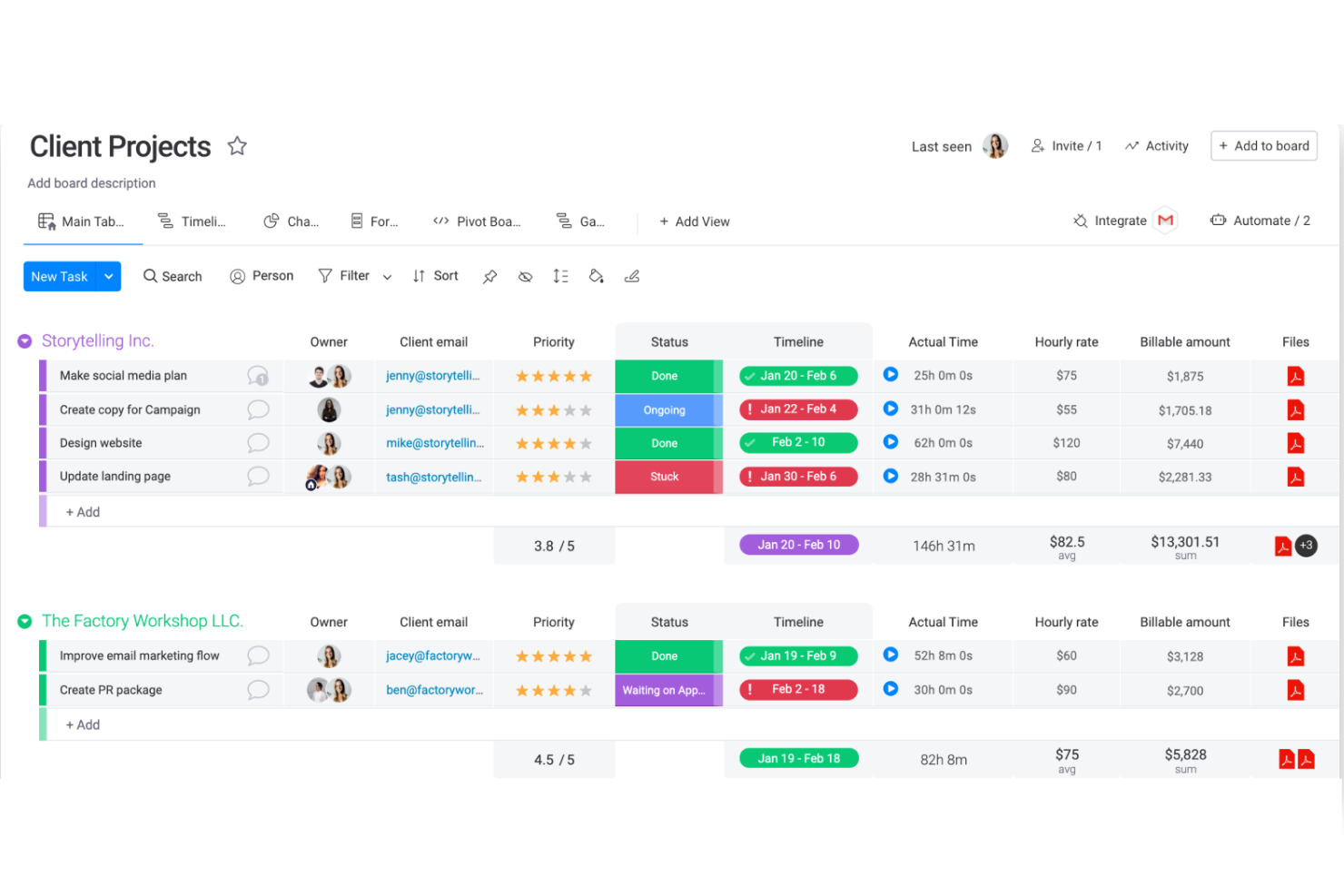
If your team needs to automate repetitive project tasks and connect workflows across tools, monday.com is worth a close look. It’s especially useful for tech, marketing, and operations teams that want to reduce manual updates and keep projects moving without constant check-ins. monday.com stands out for its visual automation builder and flexible board structure, making it easy to design and adjust processes as your needs change.
Why I Picked monday.com
When it comes to workflow automation, monday.com offers a visual automation builder that lets you set up custom triggers and actions without code. I picked monday.com because it allows teams to automate status updates, notifications, and task assignments directly from their boards. The platform’s automation recipes cover a wide range of scenarios, so you can quickly connect processes and reduce manual work. This makes it a strong fit for teams that want to keep projects moving with minimal intervention.
monday.com Key Features
Some other features in monday.com that project managers may find valuable include:
- Timeline View: Visualize project schedules and dependencies in a Gantt-style format.
- Form Builder: Collect requests or project inputs directly into boards using customizable forms.
- Workload Management: Monitor team capacity and balance assignments across multiple projects.
- Document Collaboration: Create, edit, and share documents within the platform for centralized project communication.
monday.com Integrations
Integrations include Slack, Gmail, Microsoft Teams, GitLab, Mailchimp, Excel, Outlook, DocuSign, Google Drive, and Trello.
Pros and Cons
Pros:
- Automations are easy to create and require no coding
- Easy to connect to other tools via integrations library
- Huge focus on collaboration
Cons:
- Some views have trouble auto-updating
- The Gantt view cannot be used to build a project from scratch
New Product Updates from monday.com

monday.com Adds Time Range Support to Calendar Widget
monday.com introduces time range support in the Calendar Widget. This update allows users to visualize events across their full duration instead of single dates, improving scheduling clarity. For more information, visit monday.com’s official site.

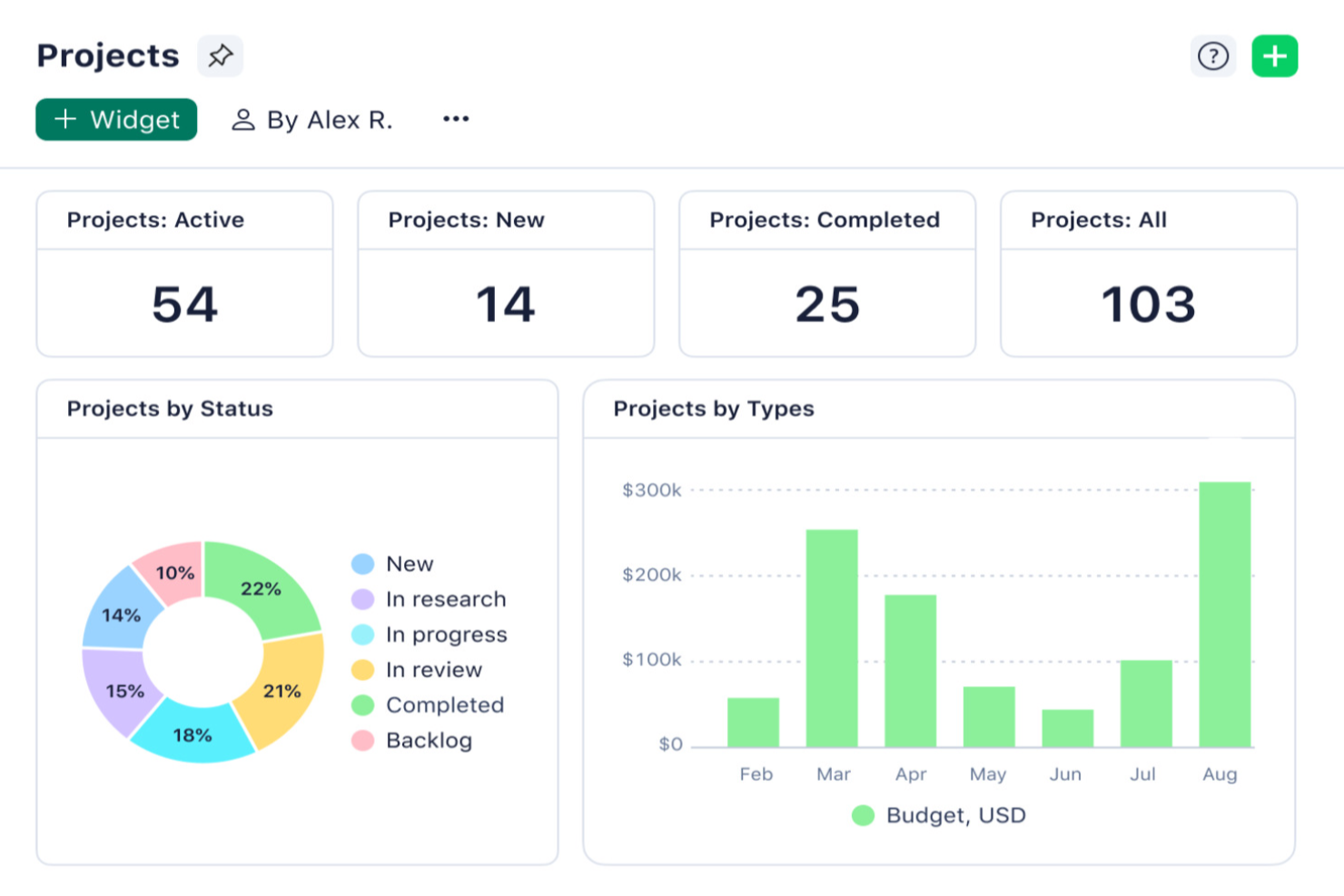
Wrike is designed for teams managing complex, large-scale projects that need advanced visibility and control. It’s a strong fit for organizations in tech, marketing, and professional services that juggle multiple workstreams and shifting priorities. Wrike stands out for its customizable workflows and real-time reporting, helping teams coordinate resources and keep projects on track as they grow.
Why I Picked Wrike
For teams handling large projects and scaling operations, Wrike offers advanced project structuring and resource management tools that are hard to match. I picked Wrike because its custom workflow builder and dynamic request forms let you tailor processes to fit complex, multi-team environments. The platform’s real-time Gantt charts and workload views help project managers spot bottlenecks and balance resources as priorities shift. These features make Wrike a strong choice for organizations that need to coordinate across departments and keep large initiatives moving forward.
Wrike Key Features
Some other features in Wrike that project managers may find useful include:
- Document Versioning: Track changes and maintain a full history of project files directly within the platform.
- Time Tracking: Log hours spent on tasks and projects to support accurate reporting and resource planning.
- Calendar Sync: Integrate project schedules with external calendars to keep everyone aligned on deadlines and milestones.
- Role-Based Access Controls: Set permissions for users and teams to manage sensitive information and maintain data security.
Wrike Integrations
Integrations include Slack, Microsoft Teams, Google Drive, Adobe Creative Cloud, Salesforce, Zoom, Tableau, Jira, Dropbox, and HubSpot.
Pros and Cons
Pros:
- Worldclass onboarding through video walkthroughs
- Right-click context menus allow you to do more with fewer clicks
- AI features are available in all plans at no extra cost
Cons:
- Integrations come at an extra cost, regardless of the plan
- 2FA is locked behind the enterprise plan
New Product Updates from Wrike

Streamlining Workspaces with New Updates
Wrike announces custom space templates, AI Agents in Wrike Labs, and a new Guage widget to improve project management. For more information, visit Wrike's official site.
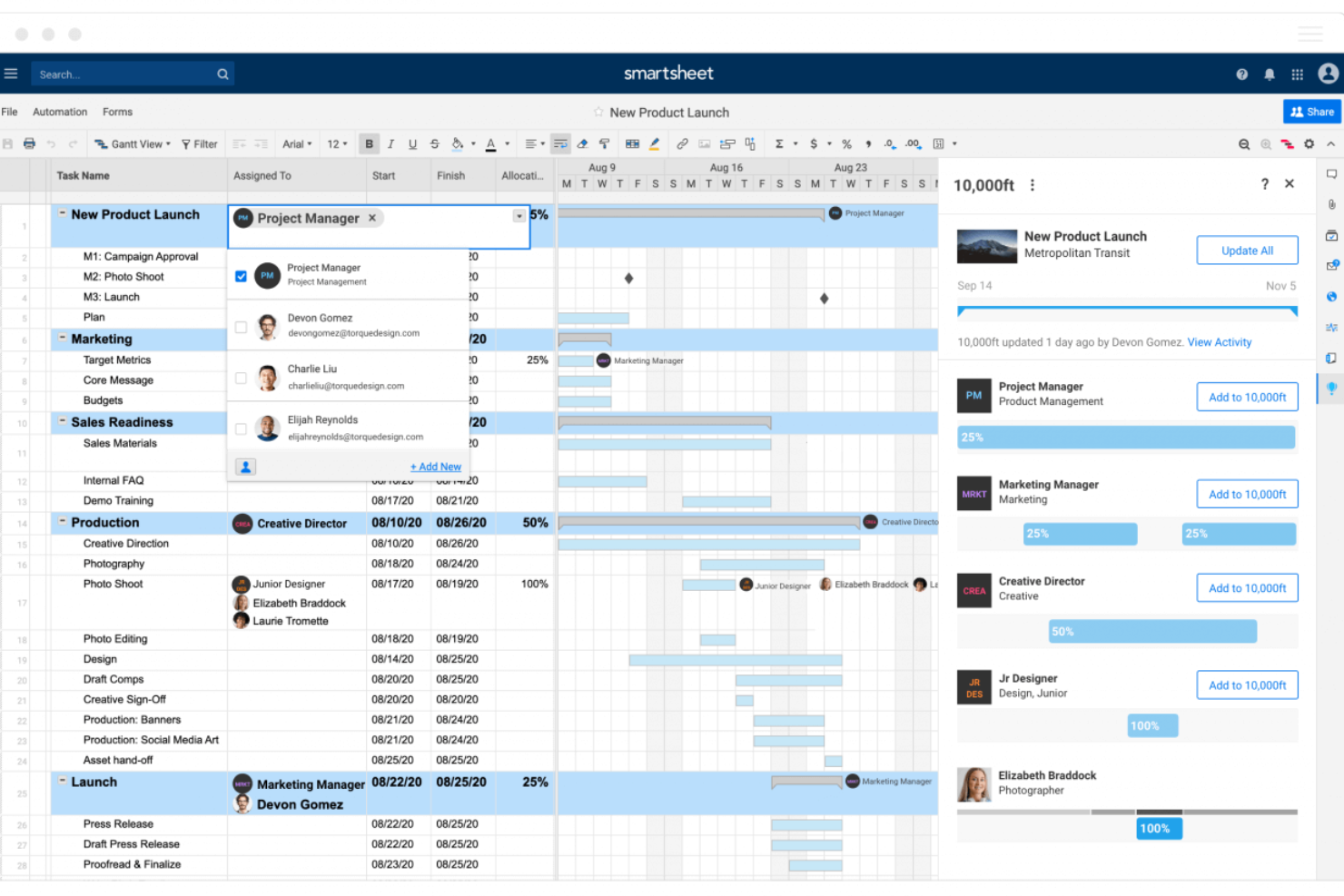
If you need a project management platform that adapts to your reporting and visualization needs, Smartsheet is worth a look. It’s especially useful for project managers and operations teams who want to build custom dashboards that pull in live data from multiple sources. Smartsheet helps teams track progress, manage resources, and share updates with stakeholders in a format that fits their workflow.
Why I Picked Smartsheet
What sets Smartsheet apart for me is how deeply you can customize dashboards to match your team’s reporting needs. You can pull in live data from sheets, reports, and forms, then visualize it with widgets like charts, graphs, and summary fields. I like that you can tailor each dashboard for different audiences, whether it’s executives, project teams, or clients. This flexibility makes Smartsheet a strong choice for teams that need to present project data in a way that’s both actionable and easy to understand.
Smartsheet Key Features
Some other features in Smartsheet that project managers may find valuable include:
- Automated Workflows: Set up rules to trigger alerts, reminders, and status updates based on project activity.
- Resource Management: Allocate team members to tasks and monitor workload across multiple projects.
- Document Attachment: Attach files directly to rows, tasks, or projects for easy reference.
- Cell-Level Comments: Add and track discussions on specific cells to keep context with the data.
Smartsheet Integrations
Integrations include Microsoft Teams, Slack, Google Drive, Microsoft OneDrive, DocuSign, Jira, Salesforce, ServiceNow, Box, and Dropbox. Smartsheet also offers an API for custom integrations.
Pros and Cons
Pros:
- Facilitates collaborative project management
- Allows for automation of tasks
- Can tailor the tool to specific project management needs
Cons:
- Not ideal for simpler project management needs
- Lacks built-in time tracking
New Product Updates from Smartsheet

Smartsheet Adds Direct Data Import to Existing Sheets
Smartsheet introduces direct data import to existing sheets in table view. This update lets you import CSV, XLS, and XLSX files directly into sheets, reducing manual work and speeding up data setup. For more information, visit Smartsheet's official site.
 .
.
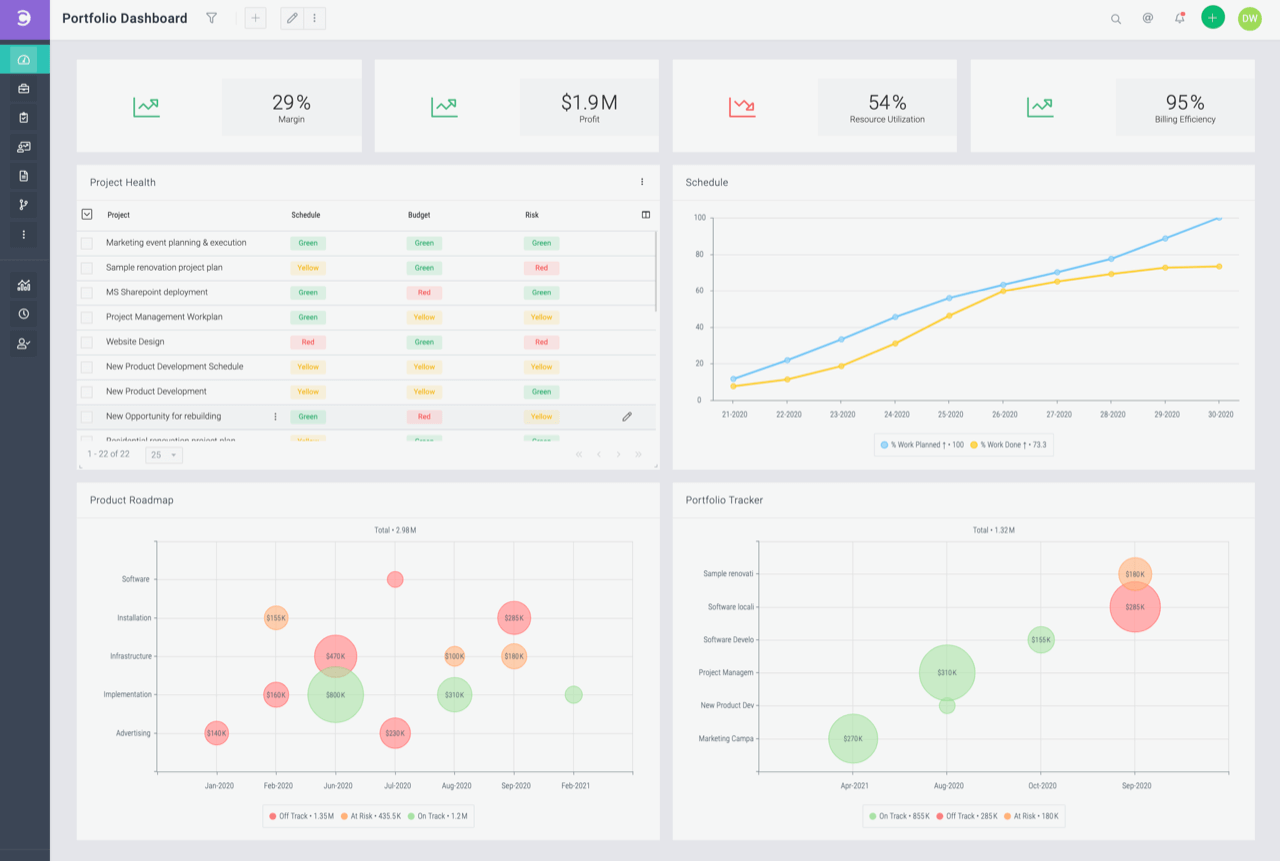
Celoxis is designed for teams that want to simplify project planning without sacrificing visibility or control. It’s a strong fit for professional services, IT, and consulting teams that need to manage multiple projects and resources in one place. With its interactive Gantt charts and built-in workflow automation, Celoxis helps teams keep projects on track and adapt quickly to changes.
Why I Picked Celoxis
What drew me to Celoxis is how it streamlines project planning and workflow management without adding complexity. The interactive Gantt chart lets you adjust timelines and dependencies with just a few clicks, making it easy to respond to shifting priorities. I also appreciate the built-in workflow automation, which helps teams standardize processes and reduce manual updates. These features make Celoxis a strong choice for teams that want to keep planning simple but still need robust project controls.
Celoxis Key Features
Some other features in Celoxis that project managers may find useful include:
- Custom Dashboards: Build personalized dashboards to track KPIs and project health in real time.
- Resource Allocation: Assign and balance resources across multiple projects from a centralized view.
- Project Request Tracking: Capture and manage incoming project requests with a dedicated intake system.
- Time and Expense Tracking: Log billable hours and expenses directly within each project workspace.
Celoxis Integrations
Integrations include Microsoft Project, Excel, Google Drive, Outlook, Salesforce, Jira, QuickBooks Online, iCal, Slack, and Trello. Celoxis also offers an API for custom integrations.
Pros and Cons
Pros:
- Offers a portfolio-level view with real-time dashboards
- Highly customizable and flexible for scaling organizations
- Advanced reporting and analytics, including AI forecasting
Cons:
- No mobile app available
- May not be suitable for small teams or organizations with fewer than 5 employees
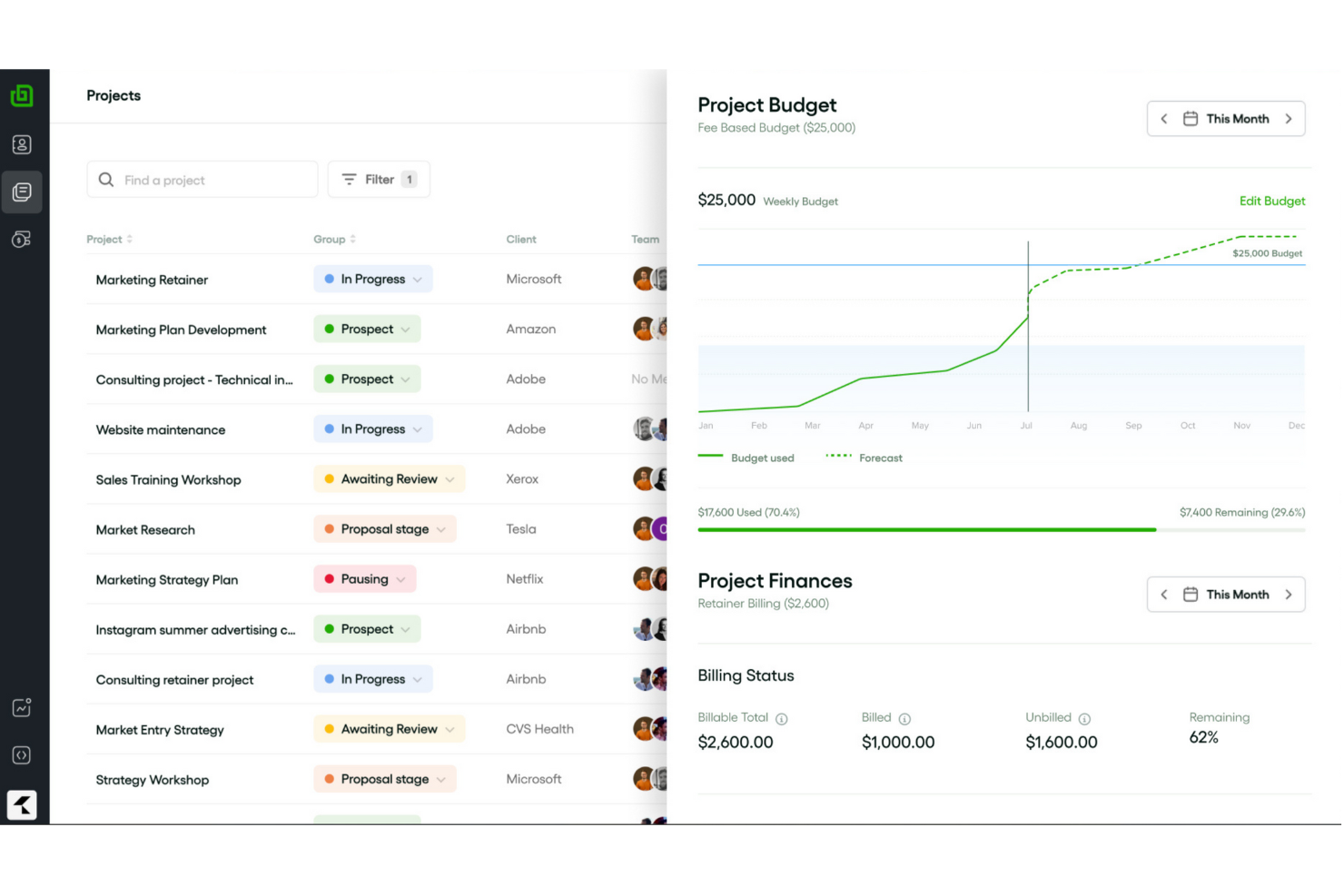
Creative agencies looking for a single platform to manage client work, finances, and collaboration often turn to Bonsai Agency Software. This tool brings together project tracking, invoicing, contracts, and client communication in one place. It’s especially useful for agencies that want to keep every part of their workflow connected from proposal to payment.
Why I Picked Bonsai Agency Software
What makes Bonsai Agency Software a strong choice for agencies is its ability to connect every stage of a client project in one platform. You can manage proposals, contracts, project tasks, and invoicing without switching tools or losing context. I appreciate how Bonsai’s client portal centralizes communication and document sharing, so nothing gets lost in email threads. For agencies that want a true end-to-end solution, Bonsai covers the full project lifecycle from onboarding to final payment.
Bonsai Agency Software Key Features
Some other features in Bonsai Agency Software that agencies may find valuable include:
- Time Tracking: Log billable and non-billable hours directly within each project.
- Automated Recurring Payments: Set up and manage recurring invoices for ongoing client work.
- Task Dependencies: Link tasks together to manage project timelines and handoffs.
- Team Collaboration Tools: Assign roles, share files, and comment on tasks within the platform.
Bonsai Agency Software Integrations
Integrations include QuickBooks, Xero, HubSpot, Google Sheets, Calendly, Trello, ClickUp, Gmail, Google Calendar, and Slack.
Pros and Cons
Pros:
- Client portal helps manage multiple clients
- Offers high-quality customizable templates
- Automation for tasks like recurring invoices
Cons:
- May not be best for scaling operations
- Lack of advanced features
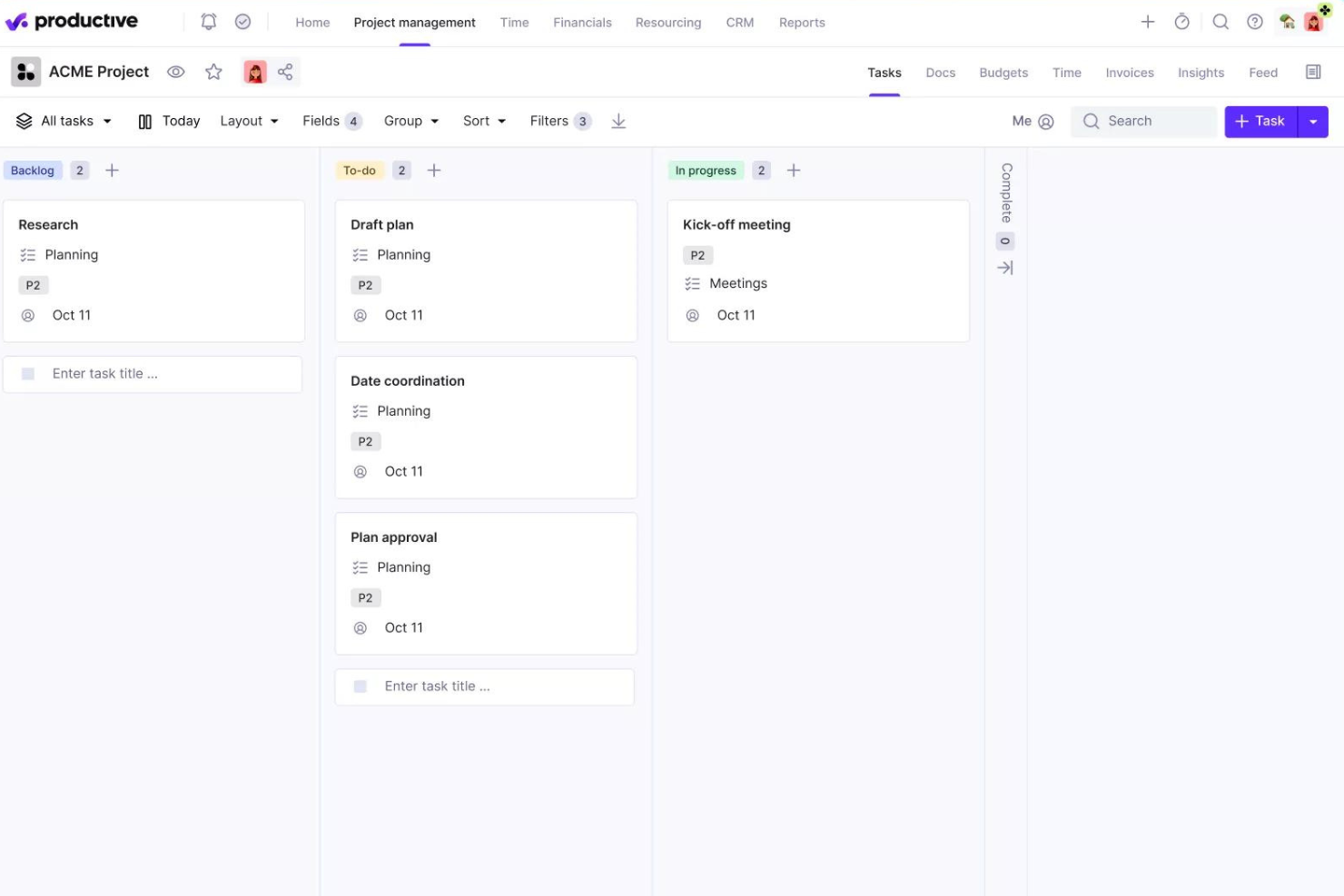
Productive is designed for agencies that need to manage projects, budgets, and client work in one place. It’s especially useful for creative, digital, and marketing teams that juggle multiple client accounts and need real-time insight into profitability. The platform brings together project management, time tracking, and financial tools to help agencies keep projects on track and budgets under control.
Why I Picked Productive
What sets Productive apart for agency projects and budgeting is its focus on unifying project delivery with financial oversight. The platform lets you track project budgets, forecast revenue, and monitor profitability in real time, all from within the same workspace. I like that you can connect time tracking directly to client billing and project costs, which helps agencies avoid budget overruns. This level of financial visibility is especially valuable for agencies managing multiple clients and shifting project scopes.
Productive Key Features
Some other features in Productive that agencies may find valuable include:
- Task Management: Organize, assign, and prioritize tasks across multiple projects.
- Sales Pipeline Tracking: Manage leads and opportunities from initial contact through to project kickoff.
- Document Storage: Store, share, and collaborate on project files within the platform.
- Resource Scheduling: Plan team workloads and visualize availability with a drag-and-drop scheduler.
Productive Integrations
Integrations include Jira, Slack, QuickBooks, Xero, Zapier, Sage, BambooHR, Google Calendar, Rippling, and HubSpot.
Pros and Cons
Pros:
- Integrated financial management and reporting
- User-friendly interface that simplifies task management
- Robust resource planning and tracking
Cons:
- Initial setup can be time-consuming
- Could have more integrations
New Product Updates from Productive

Productive Introduces Resource Request Feature
Productive introduces a resource request feature that helps teams request and allocate resources more efficiently. For more information, visit Productive's official site.

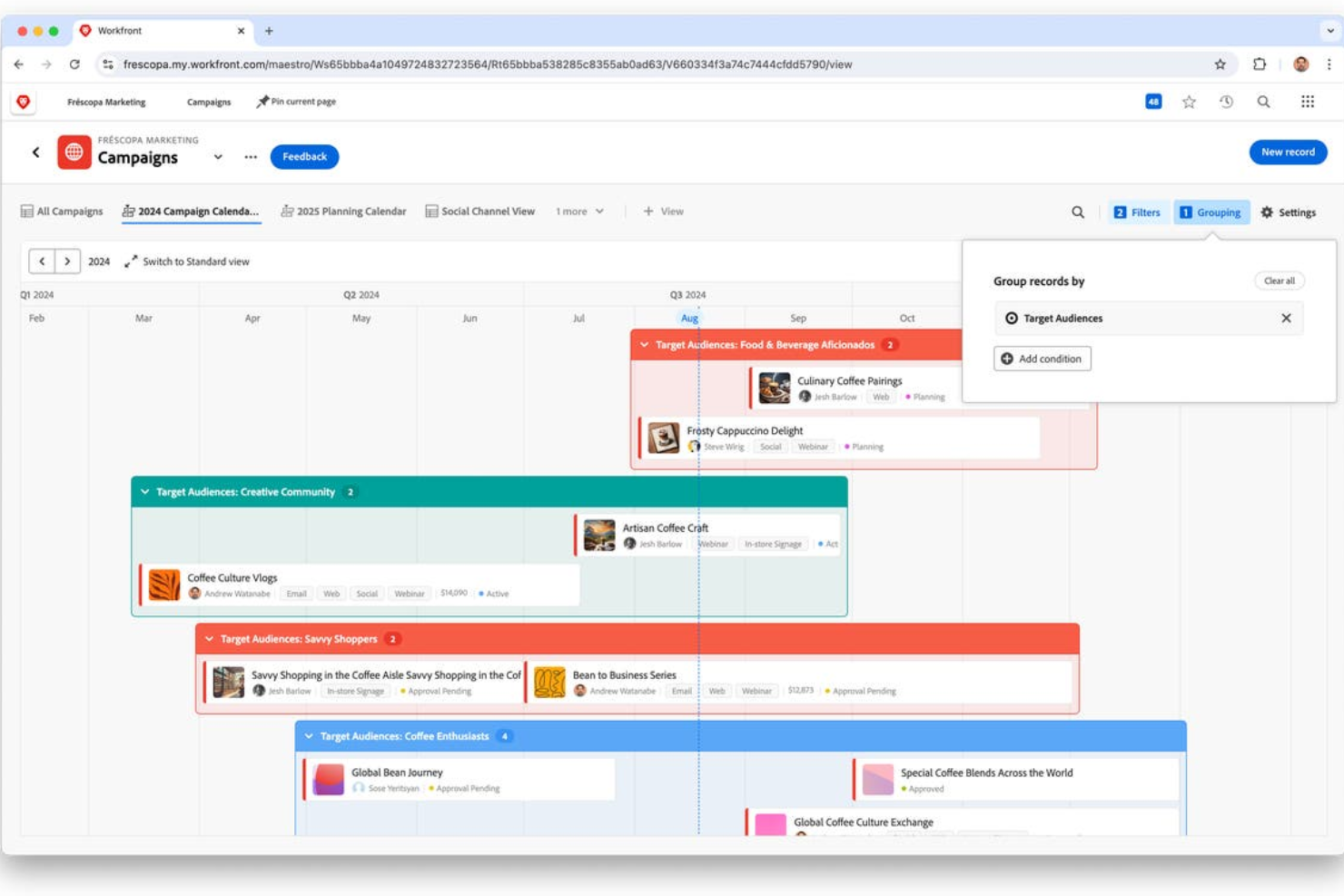
For teams that need to standardize and scale project delivery, Adobe Workfront offers a flexible approach to project planning. It’s a strong fit for enterprise project managers and PMOs who want to build and reuse detailed project templates across departments. Workfront helps organizations enforce process consistency while still allowing for customization at the project level.
Why I Picked Adobe Workfront
What drew me to Adobe Workfront is how deeply you can customize project templates to fit different teams and workflows. You can build templates with pre-set tasks, dependencies, milestones, and even approval processes, making it easy to launch new projects with consistent structure. I appreciate that you can also tailor templates for specific departments or project types, so each team gets exactly what they need. This level of template flexibility is especially useful for organizations managing complex, repeatable projects at scale.
Adobe Workfront Key Features
Some other features in Adobe Workfront that project managers may find useful include:
- Portfolio Management: Group related projects and track progress at the portfolio level.
- Resource Scheduling: Assign and balance workloads across teams and individuals.
- Custom Forms: Build forms to capture project requests and standardize intake.
- Proofing and Approvals: Review, comment, and approve digital assets directly within the platform.
Adobe Workfront Integrations
Integrations include Adobe Creative Cloud, Microsoft Teams, Slack, Jira, Salesforce, Google Drive, Microsoft Outlook, Box, Dropbox, and ServiceNow. Adobe Workfront also offers an API for custom integrations.
Pros and Cons
Pros:
- Customizable dashboards and reports
- Integration with BI tools like Tableau and Power BI
- Supports various project methodologies
Cons:
- Integration setup can be time-consuming
- No AI forecasting or predictive analytics
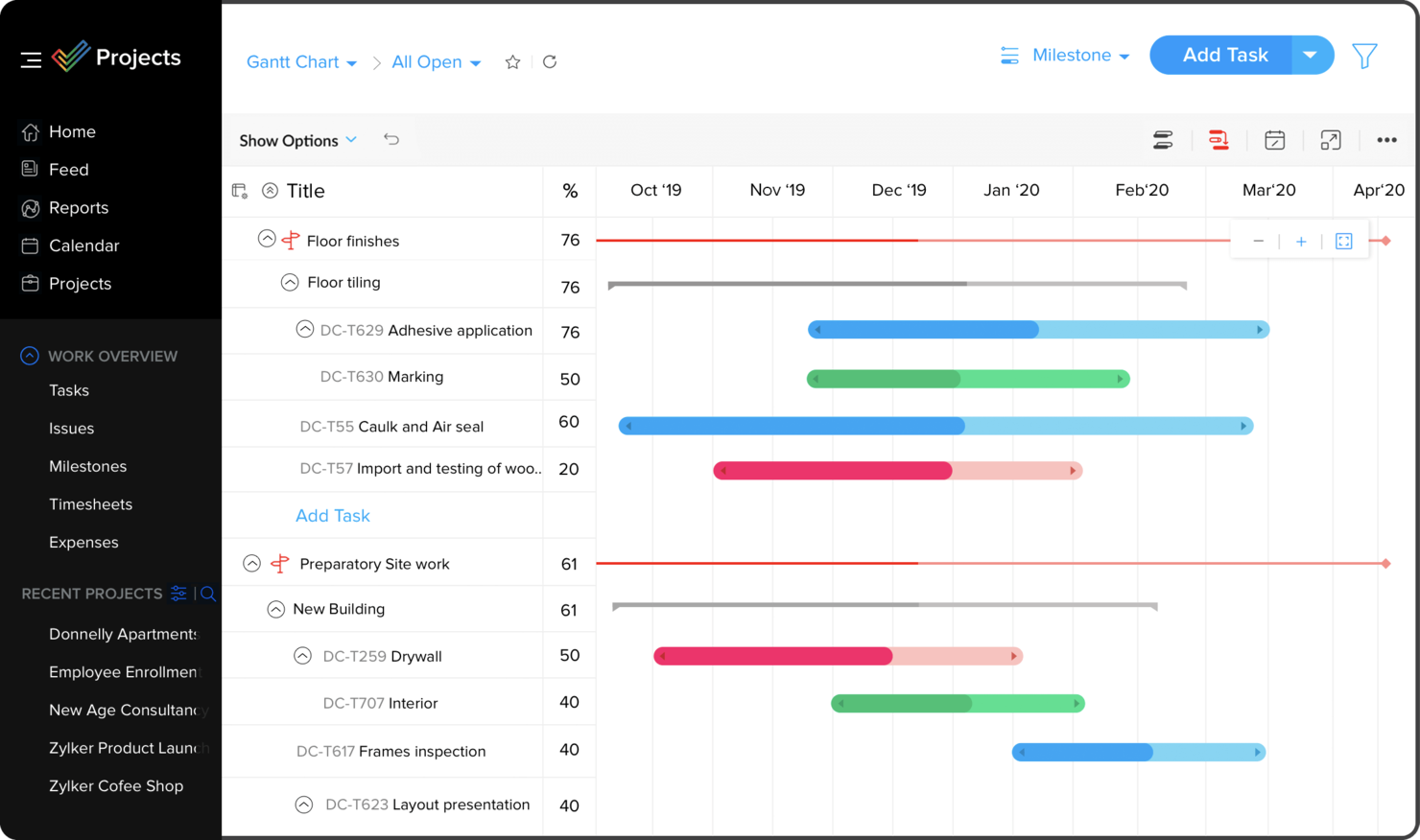
If your team already relies on the Zoho Suite, Zoho Projects offers a project management solution that fits right into your existing workflows. It’s a strong choice for businesses that want to connect project planning, collaboration, and reporting with Zoho’s CRM, finance, and HR tools. The platform helps unify data and processes across departments, making it easier to manage projects without switching between disconnected apps.
Why I Picked Zoho Projects
Zoho Projects stands out for teams that want deep integration with the broader Zoho Suite. You can link project tasks directly to Zoho CRM deals, automate workflows using Zoho Flow, and sync project time tracking with Zoho Books for billing. I appreciate how these connections let you manage projects, sales, and finances without leaving the Zoho ecosystem. This level of integration is especially useful for businesses that already use Zoho tools across multiple departments.
Zoho Projects Key Features
Some other features in Zoho Projects that are worth noting include:
- Gantt Charts: Visualize project timelines and dependencies with interactive Gantt charts.
- Issue Tracking: Log, assign, and monitor bugs or issues within each project.
- Custom Fields: Add custom data fields to tasks, projects, or timesheets for tailored tracking.
- Project Forums: Facilitate team discussions and knowledge sharing with built-in project forums.
Zoho Projects Integrations
Integrations include several of Zoho’s other services, such as Zoho Books and Zoho’s finance suite. The new Zoho marketplace allows third-party integrations as well, like Microsoft Office 365, Microsoft Teams, Google Drive, Zapier, Zendesk, and ServiceNow. Integrations via Zapier and Zoho Flow are also supported.
Pros and Cons
Pros:
- Time-track multiple tasks at once
- Easy workflow automations
- Unlimited number of projects
Cons:
- Lack of file type export options
- Does not integrate with Quickbooks


If your team needs a workspace built for real-time collaboration, Hive is designed to keep everyone connected and moving together. It’s a strong choice for digital project managers and cross-functional teams who want to manage tasks, chat, share files, and automate workflows in one place. Hive stands out for its flexible project views and built-in messaging, making it easier to coordinate work and decisions without leaving the platform.
Why I Picked Hive
Hive’s focus on collaborative project management makes it a strong option for teams that need to work together in real time. The built-in chat and direct messaging features let you discuss tasks and projects without switching tools. I picked Hive because it also offers flexible project views—like Gantt, Kanban, and calendar—so everyone can work the way they prefer while staying aligned. This combination of communication and adaptable planning tools helps teams coordinate and make decisions quickly.
Hive Key Features
Some other features in Hive that are worth noting include:
- Proofing and Approval Tools: Review and approve files, images, and documents directly within tasks.
- Native Time Tracking: Track time spent on tasks and generate timesheets for projects.
- Automated Workflows: Set up custom automations to handle repetitive actions and task updates.
- Forms: Create and share forms to collect project requests or feedback from stakeholders.
Hive Integrations
Integrations include Google Drive, Dropbox, Zoom, Microsoft Teams, Outlook Calendar, Jira, Slack, Github, Box, and QuickBooks.
Pros and Cons
Pros:
- Easy to integrate with other tools
- Great all-in-one option for SMBs
- Excellent built-in communication features
Cons:
- Mobile version limited in functionality
- Reporting functions could be expanded
New Product Updates from Hive

Hive Launches AI-Powered Buzz Mail
Hive introduces Buzz Mail, an AI-driven email organizer that prioritizes messages and suggests personalized replies. For more information, visit Hive's official site.
 .
.
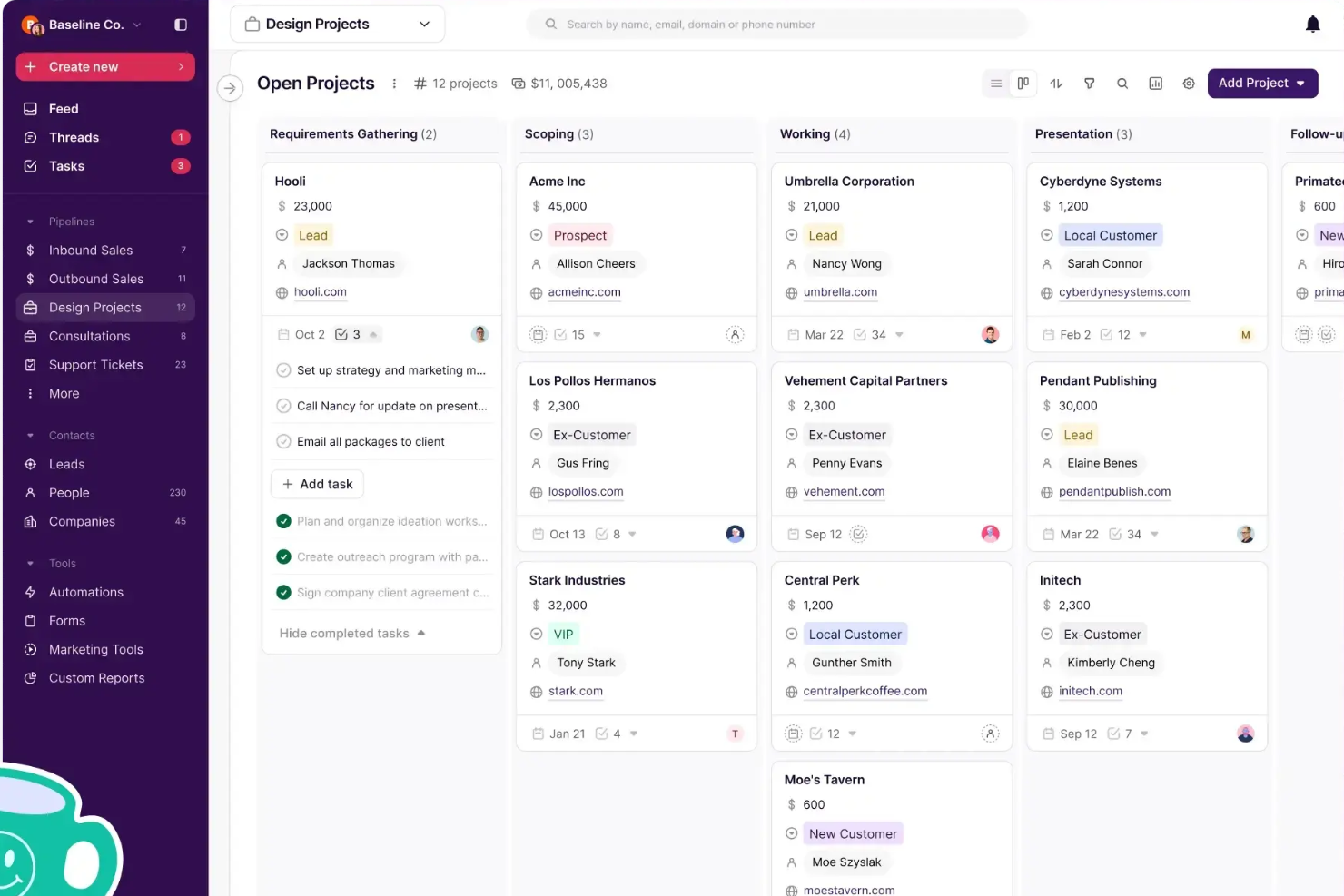
If your agency needs to connect sales and project delivery without extra admin work, Copper is built for you. It’s designed for teams that rely on Google Workspace and want a CRM that fits naturally into their workflow. Copper helps agencies keep client data, communications, and project handoffs organized from the first pitch through final delivery.
Why I Picked Copper
Copper stands out for agencies that want to bridge the gap between sales and project delivery without manual data entry. Its deep integration with Google Workspace means you can track leads, manage contacts, and move deals forward right from Gmail and Google Calendar. I picked Copper because it automatically captures emails, files, and meeting notes, so your team always has the latest client context as projects move from sales to delivery. This approach helps agencies avoid dropped handoffs and keeps everyone aligned throughout the client lifecycle.
Copper Key Features
Some other features in Copper that agencies may find useful include:
- Pipeline Management: Visualize and manage sales opportunities through customizable pipeline stages.
- Workflow Automation: Set up automated actions for repetitive tasks like follow-ups or status updates.
- Reporting and Analytics: Generate detailed reports on sales performance, activities, and team productivity.
- Mobile App: Access client information, update deals, and communicate with your team on the go.
Copper Integrations
Integrations include Gmail, Google Calendar, Google Drive, Mailchimp, Google Sheets, LinkedIn, RingCentral, Docusign, QuickBooks, and Dropbox.
Pros and Cons
Pros:
- Integrates CRM and project management
- Chrome extension brings tools into Gmail, Calendar, LinkedIn, and more
- Ideal for Google Workspace-based client teams
Cons:
- Does not connect to Microsoft 365, Outlook, or other email platforms
- Could offer more robust project management features, like resourcing

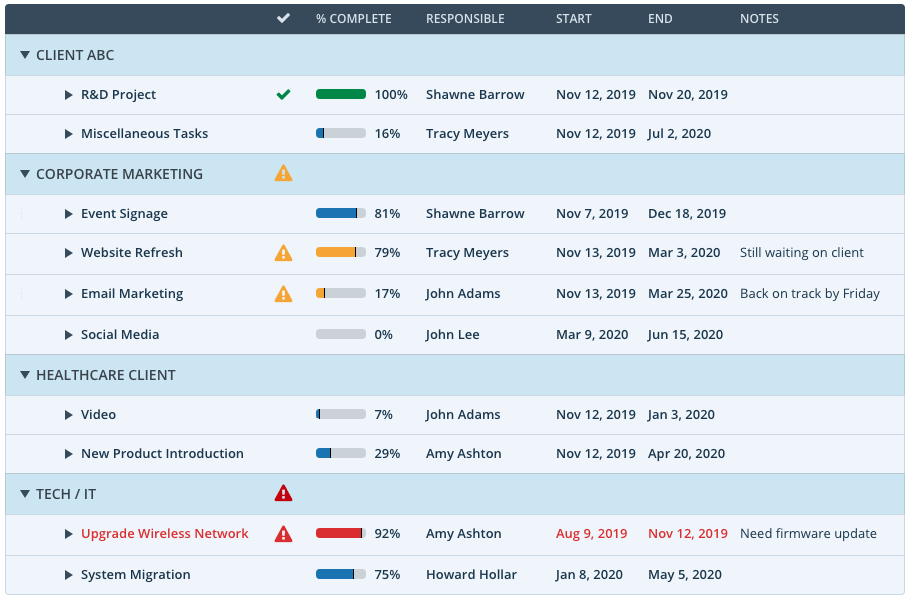
Teams managing multiple projects at once often turn to Workzone for its strong visibility and control features. It’s especially useful for project managers in agencies, marketing departments, and operations who need to track progress across portfolios and spot risks early. Workzone’s detailed dashboards and cross-project reporting help you keep everything on track without losing sight of the big picture.
Why I Picked Workzone
What sets Workzone apart is how it gives project managers a clear, real-time view across all active projects. Its portfolio dashboards and workload reports make it easy to spot bottlenecks and balance resources before issues escalate. I picked Workzone because it lets you drill down from high-level overviews to individual task details, so nothing gets missed. This level of visibility is especially valuable for teams juggling complex, multi-project environments.
Workzone Key Features
Some other features in Workzone that are worth highlighting include:
- Task Dependencies: Set up relationships between tasks to manage sequencing and deadlines.
- Document Sharing and Versioning: Store, share, and track changes to project files within the platform.
- Custom Project Request Forms: Collect and organize new project requests directly from stakeholders.
- Automated Alerts and Reminders: Send notifications to team members about upcoming deadlines or task updates.
Workzone Integrations
Integrations include Slack, Microsoft Teams, Google Drive, Salesforce, Box, Dropbox, Jira, HubSpot, QuickBooks Online, and OneDrive.
Pros and Cons
Pros:
- Easy template creation from existing projects
- Thoughtful collaboration so you don’t have to dig for comments
- Portfolio-to-task level visibility with robust filtering
Cons:
- Waterfall and board views are separate
- No video mark-up tool
- Delayed tasks negatively affect independent tasks on the timeline

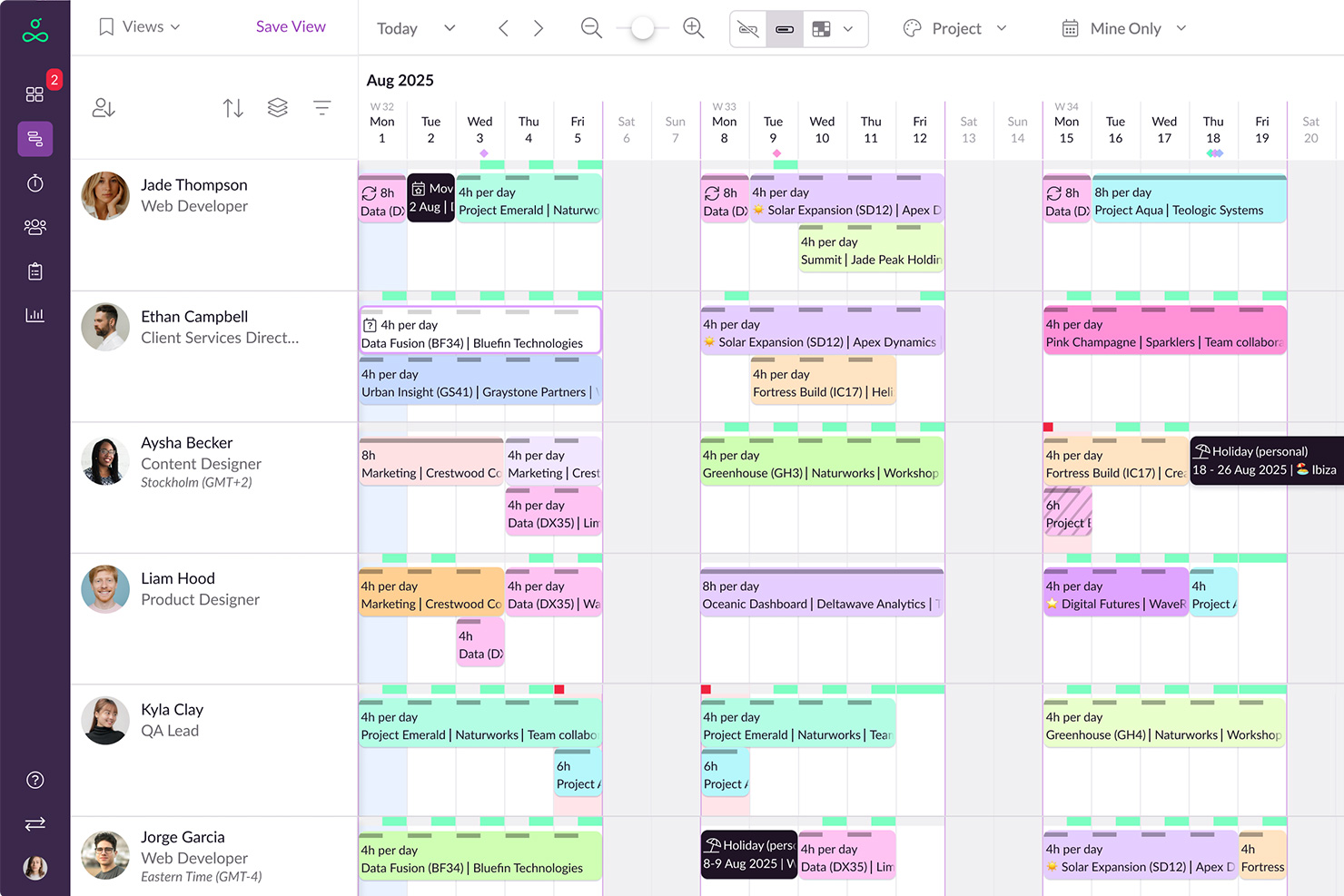
If your team struggles with double-booking or resource conflicts, Resource Guru is built to help. This tool is designed for project managers and operations leads who need clear visibility into team availability and workloads. Its unique scheduling grid and clash management features make it easier to prevent over-allocation before it happens.
Why I Picked Resource Guru
What stands out about Resource Guru is its focus on preventing over-allocation before it disrupts your project. The tool’s scheduling grid gives you a real-time view of team capacity, so you can spot conflicts and adjust assignments quickly. I like that it includes clash management, which flags double-bookings and helps you resolve them on the spot. For project managers who need to balance workloads and avoid burnout, Resource Guru offers targeted features that address these challenges directly.
Resource Guru Key Features
Some other features in Resource Guru that project teams may find useful include:
- Leave Management: Track and approve vacation, sick days, and other absences directly in the platform.
- Resource Categories: Organize people, rooms, and equipment into custom categories for easier scheduling.
- Personal Dashboards: Give each team member a personalized view of their assignments and availability.
- Reporting Suite: Generate utilization and capacity reports to support resource planning decisions.
Resource Guru Integrations
Native integrations include Outlook Calendar, Google Calendar, and Jira. An API is also available for custom integrations.
Pros and Cons
Pros:
- Comprehensive reporting features
- Good leave management system
- Offers flexibility in managing different types of resources
Cons:
- Could offer more native integrations
- Approval workflows are limited to higher-tier plans

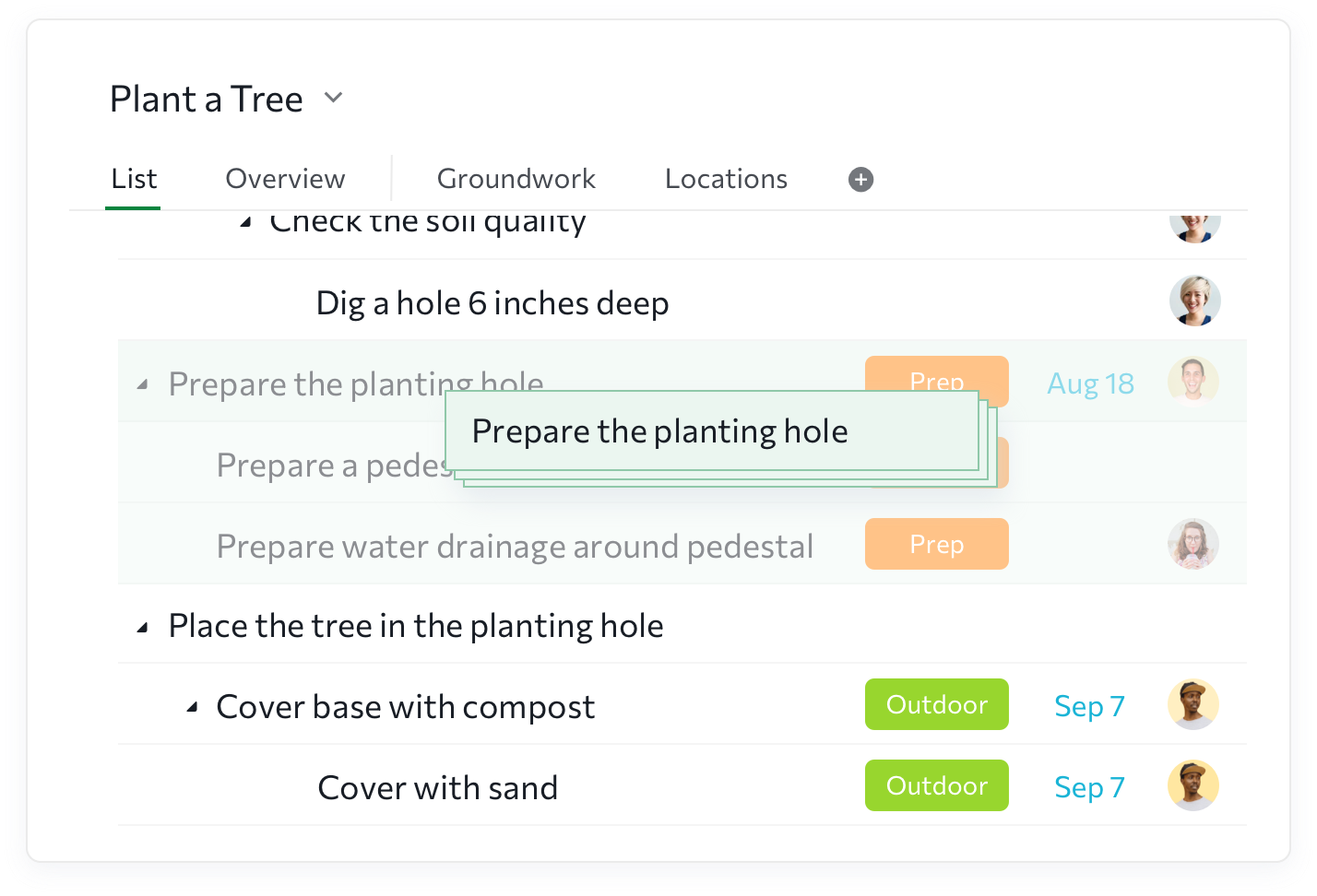
If your team needs to break down complex projects into clear, actionable steps, Quire is built for that purpose. The platform’s nested task lists and visual boards help product teams, agencies, and startups organize work at any level of detail. Quire is especially useful for groups that want to manage granular tasks without losing sight of the bigger picture.
Why I Picked Quire
Quire stands out for teams that need to break down projects into highly detailed, manageable tasks. Its nested task lists let you create unlimited sub-tasks, so you can map out every step of a project without losing structure. I like how you can switch between list, board, and timeline views to see both granular details and overall progress. For anyone looking to organize complex work into clear, actionable pieces, Quire’s task breakdown features are hard to match.
Quire Key Features
Some other features in Quire that project managers may find useful include:
- Smart Folders: Group tasks and projects from different workspaces into a single view.
- Kanban Board: Visualize and manage tasks using drag-and-drop columns.
- Progress Reporting: Generate real-time reports on project and team progress.
- Permission Controls: Set user roles and access levels for each project.
Quire Integrations
Integrations include Google Calendar, Slack, Gmail, Outlook, GitHub, Dropbox, Box, Google Drive, OneDrive, and Apple Calendar.
Pros and Cons
Pros:
- Easy to customize
- Intuitive user interface & dashboard
- Excellent for time tracking
- Free to use
Cons:
- More integrations needed
- Mobile app not as robust as web
- Additional communication tools welcomed
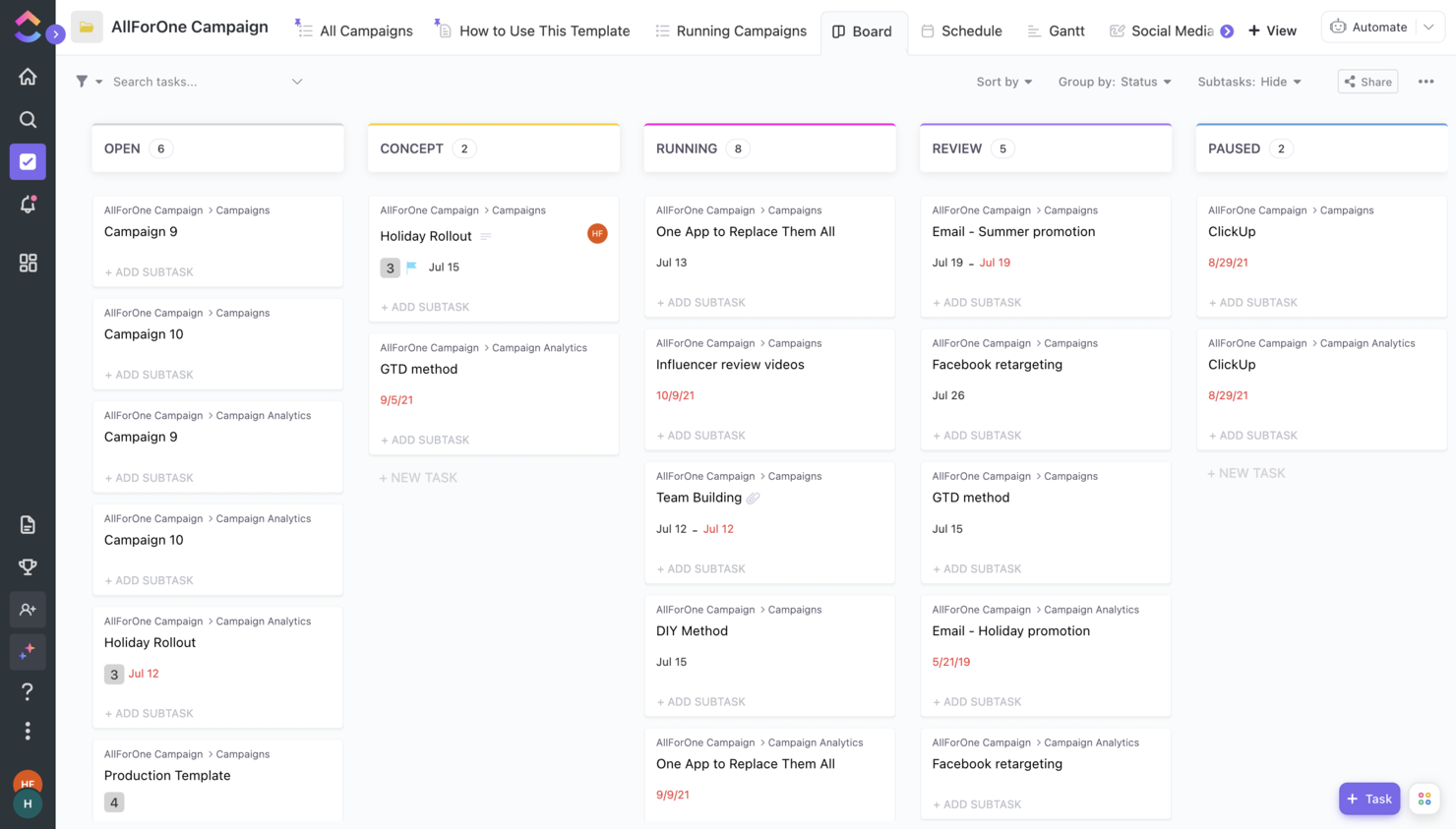
ClickUp brings project management, docs, goals, and chat into one platform, making it a strong fit for teams tired of juggling multiple tools. It’s especially useful for tech and digital teams that want to centralize work, automate processes, and keep everything—from tasks to knowledge bases—in a single workspace. If you’re looking to reduce context switching and unify your workflows, ClickUp offers a flexible solution that adapts to a wide range of project needs.
Why I Picked ClickUp
What sets ClickUp apart is its ability to bring together project management, documentation, and team communication in one place. You can manage tasks, create and share docs, and even run team chat without switching platforms. I picked ClickUp because it lets teams replace separate tools for wikis, goal tracking, and whiteboards with a single, customizable workspace. This approach helps reduce tool sprawl and keeps all your project information connected.
ClickUp Key Features
Some other features in ClickUp that are worth highlighting include:
- Custom Dashboards: Build visual dashboards to track project metrics, workload, and progress.
- Time Tracking: Log time directly on tasks and generate time reports for projects.
- Automation Builder: Set up custom automations to handle repetitive actions and task updates.
- Mind Maps: Create visual mind maps to brainstorm ideas and organize project structures.
ClickUp Integrations
Integrations include native ones with Slack, HubSpot, TogglTrack, Figma, Loom, Sentry, G Suite, Dropbox, Clockify, and Calendly. Additionally, you can connect to another 1,000+ apps using a paid membership with Zapier. Finally, if making custom integrations is within your reach, there is a public API you can use for it.
Pros and Cons
Pros:
- Improved performance after its latest upgrade to ClickUp 3.0
- Low price compared to the number of features it offers.
- Great knowledge base with helpful articles and tutorials.
Cons:
- AI is available for an extra fee, regardless of the plan.
- Free version becomes read-only after reaching limits.

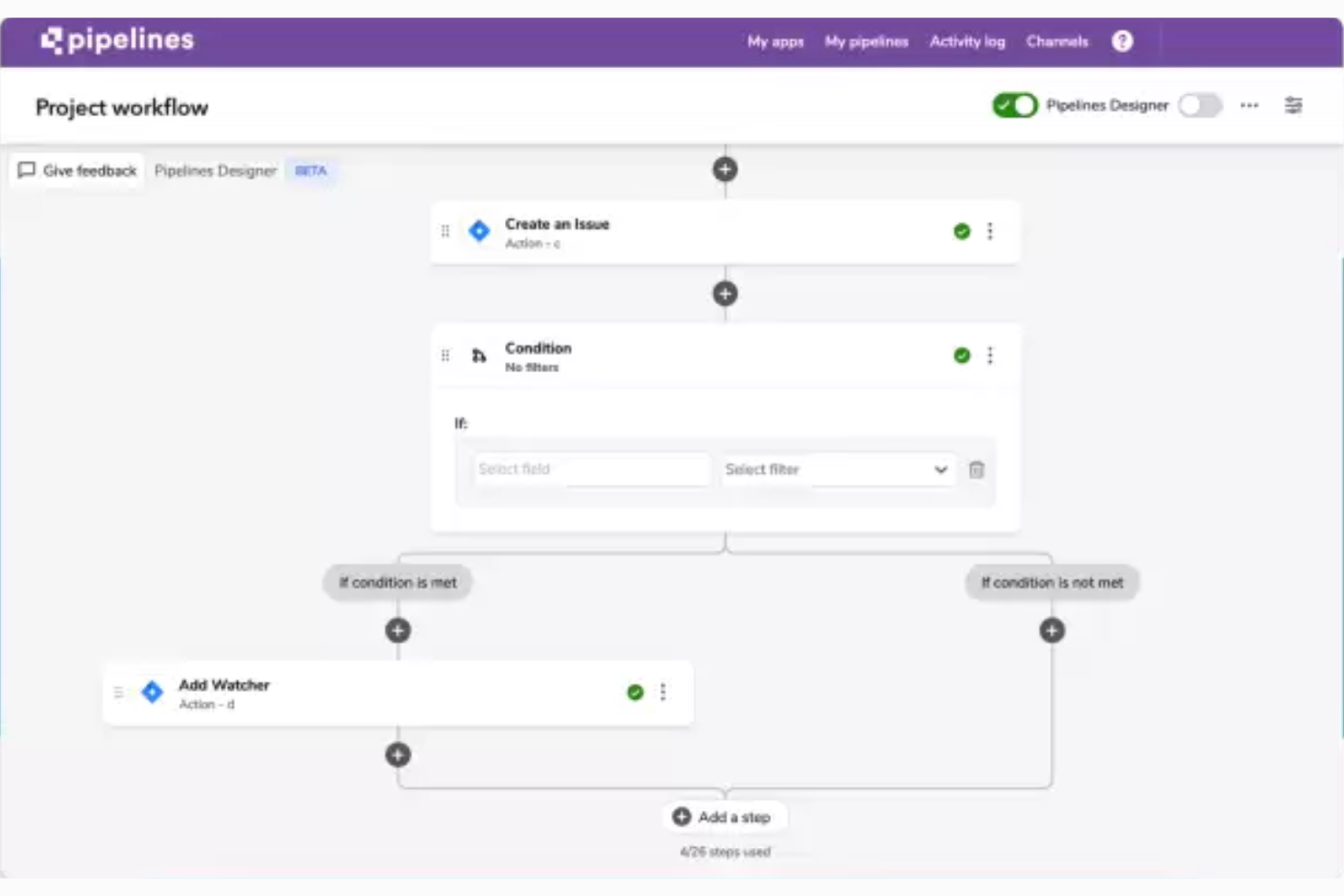
For teams that need a flexible platform to build custom workflows, Quickbase offers a no-code environment that adapts to almost any process. Operations leads, IT teams, and project managers use it to connect data, automate tasks, and manage projects across departments. Its versatility stands out for organizations with unique requirements that off-the-shelf tools can’t address.
Why I Picked Quickbase
What sets Quickbase apart is how it lets you design custom applications and workflows without writing code. I picked it for its ability to handle complex, cross-functional processes that don’t fit into standard project management templates. The platform’s drag-and-drop builder, dynamic forms, and real-time reporting tools make it possible to tailor solutions for almost any business scenario. If your team needs a tool that adapts to your processes—not the other way around—Quickbase is built for that level of versatility.
Quickbase Key Features
Some other features in Quickbase that project managers may find valuable include:
- Automated Workflows: Set up triggers and actions to automate repetitive tasks across your apps.
- Role-Based Permissions: Control access to data and features for different user groups.
- Audit Logs: Track changes and user activity for compliance and transparency.
- Mobile Access: Use Quickbase apps on smartphones and tablets for work on the go.
Quickbase Integrations
Integrations include Salesforce, DocuSign, ServiceNow, Microsoft Teams, Gmail, Slack, Box, Dropbox, QuickBooks, and Google Drive. An API is also available for custom integrations.
Pros and Cons
Pros:
- Highly customizable and flexible to suit various contexts
- On-premise options with enterprise level plans
- FDA & HIPAA compliance with higher-tier plans
Cons:
- Some features come as paid add-ons
- Not all integrations are available with all plans
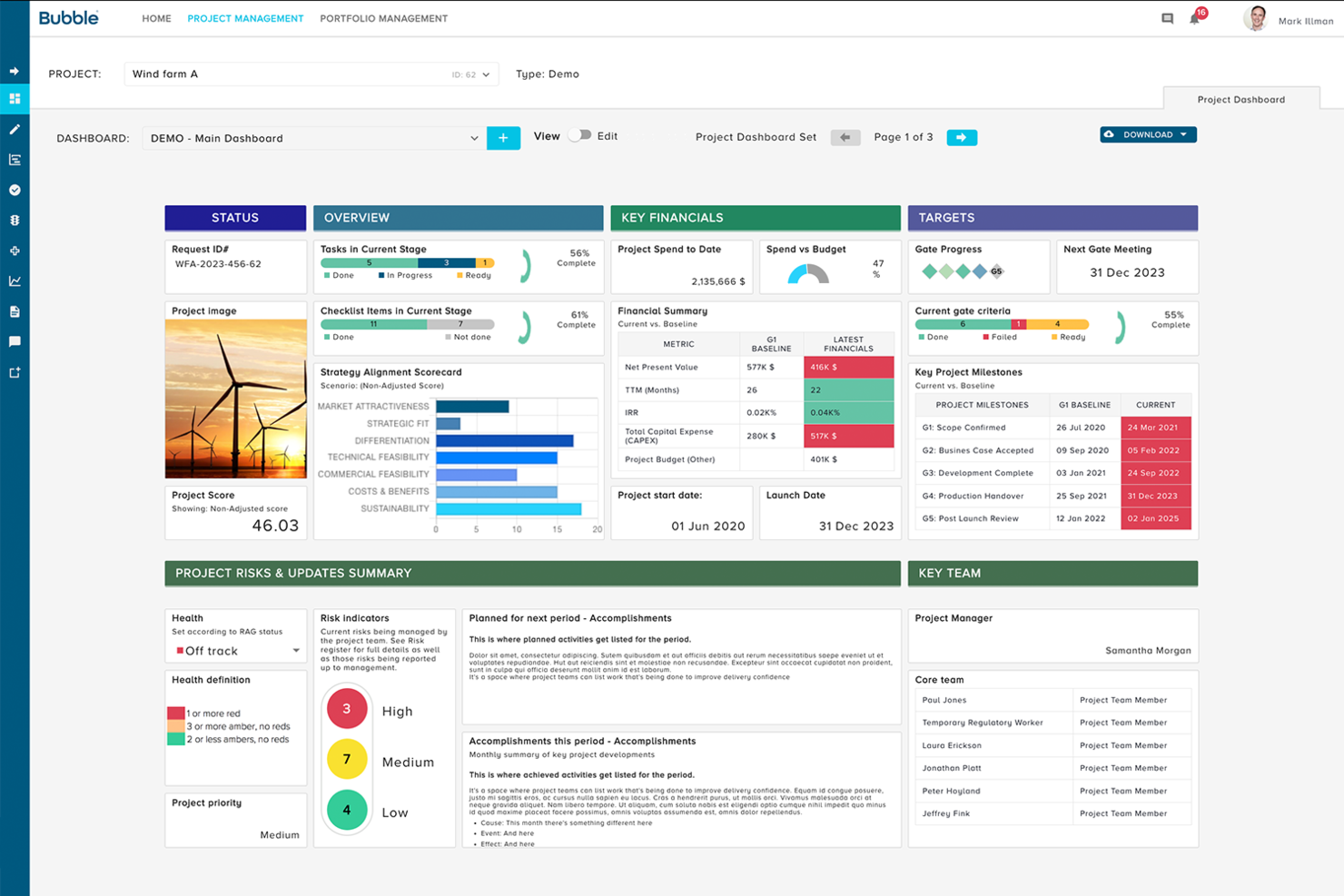
If you need a single platform to manage project portfolios, Bubble PPM is designed for organizations balancing multiple initiatives and resources. Portfolio managers and PMOs use it to align projects with business strategy and track progress across programs. Its configurable dashboards and scenario modeling help teams prioritize investments and respond to shifting priorities.
Why I Picked Bubble PPM
Bubble PPM stands out for its focus on portfolio management, giving teams a centralized view of all projects and programs. I picked it because its configurable dashboards let you track key metrics and portfolio health at a glance. The scenario modeling feature helps decision-makers weigh trade-offs and optimize resource allocation across competing initiatives. For organizations managing complex portfolios, these capabilities support better alignment with business goals and more informed prioritization.
Bubble PPM Key Features
Some other features in Bubble PPM that project managers may find useful include:
- Stage Gate Process Management: Structure projects with customizable stage gates for governance and control.
- Document Management: Store, organize, and share project documents within the platform.
- Risk and Issue Tracking: Log, monitor, and address risks and issues across portfolios.
- Automated Reporting: Generate and schedule reports on project and portfolio performance.
Bubble PPM Integrations
Integrations include over 400 native integrations with apps like SAP, JIRA, Confluence, MS Teams, Slack, Salesforce, Hubspot, Sailpoint, Power BI, and SSO/MFA. Plus, you can build your own integrations with their powerful API.
Pros and Cons
Pros:
- Project and portfolio management in one
- Real-time updates and summaries of projects
- User-friendly interface, easy to learn
Cons:
- Limited dashboard color customization
- Substantial implementation efforts may be necessary to get started
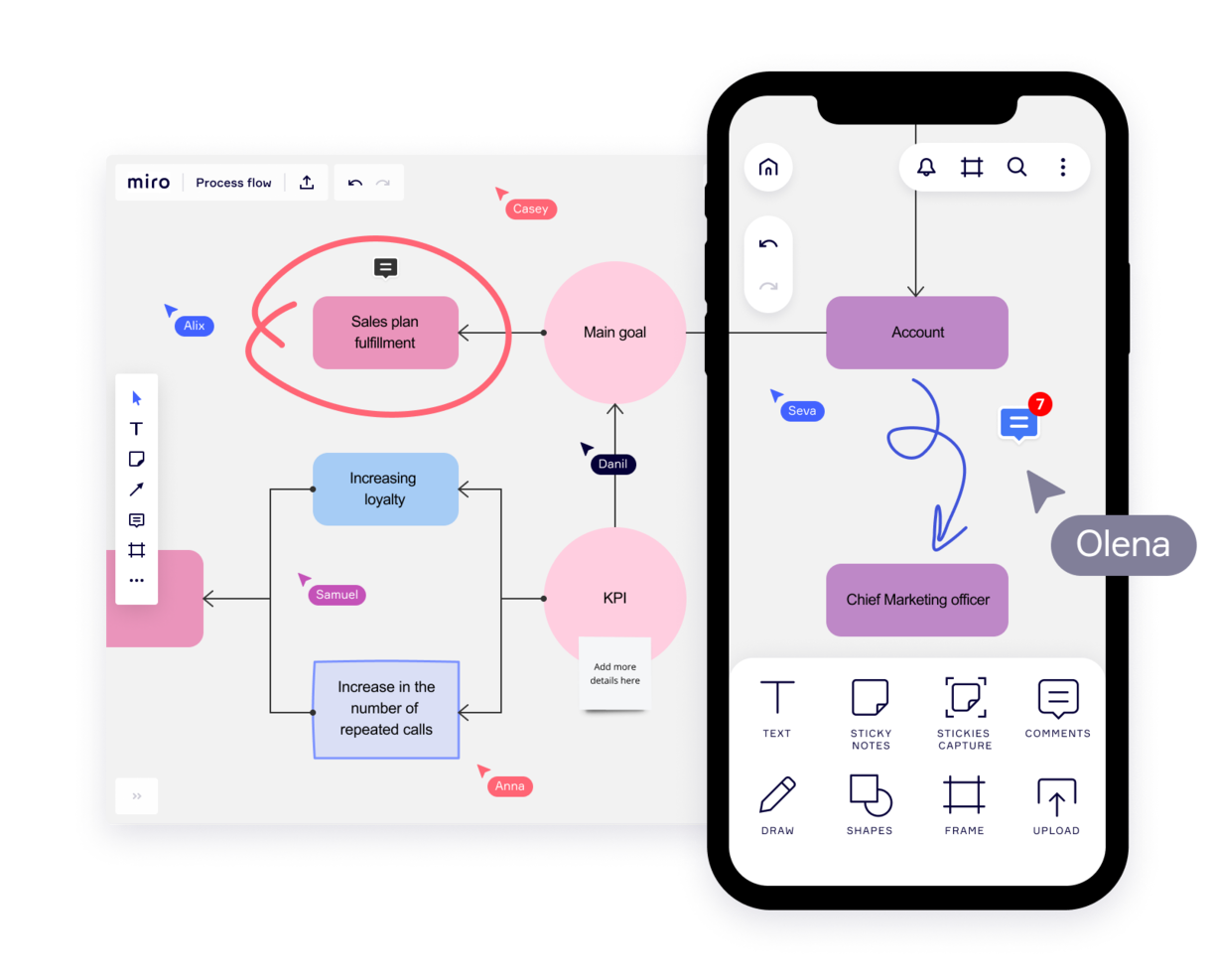
Miro is an online collaborative tool designed to help teams visualize, brainstorm, and plan together. It supports a variety of industries and use cases, offering an intuitive space for ideation and project execution.
Why I picked Miro: Miro offers an interactive whiteboard environment where you can add sticky notes, diagrams, and flowcharts in real time with your team. Its drag-and-drop functionality makes it easy to organize ideas and create workflows. You’ll also find features like infinite canvas, pre-made templates, and real-time collaboration tools, all optimized for brainstorming and planning sessions. These tools make it especially effective for creative and strategic work that requires input from multiple stakeholders.
Standout features & integrations:
Features include advanced visualization tools like timeline and roadmap templates that enable teams to structure projects with clear milestones and deadlines. Additionally, Miro’s frameworks for agile practices, such as sprint planning and retrospectives, provide structured support for project methodologies.
Integrations include Jira, Asana, Microsoft Teams, Slack, Google Drive, Dropbox, Confluence, Trello, ClickUp, and Zoom.
Pros and Cons
Pros:
- Built-in communication features for streamlined collaboration
- Intuitive and easy setup
- Free forever plan available
Cons:
- Free version does not allow high-quality export to pdf
- Zooming can be jumpy on larger projects
- Visitor/guest accounts locked to paid plans only
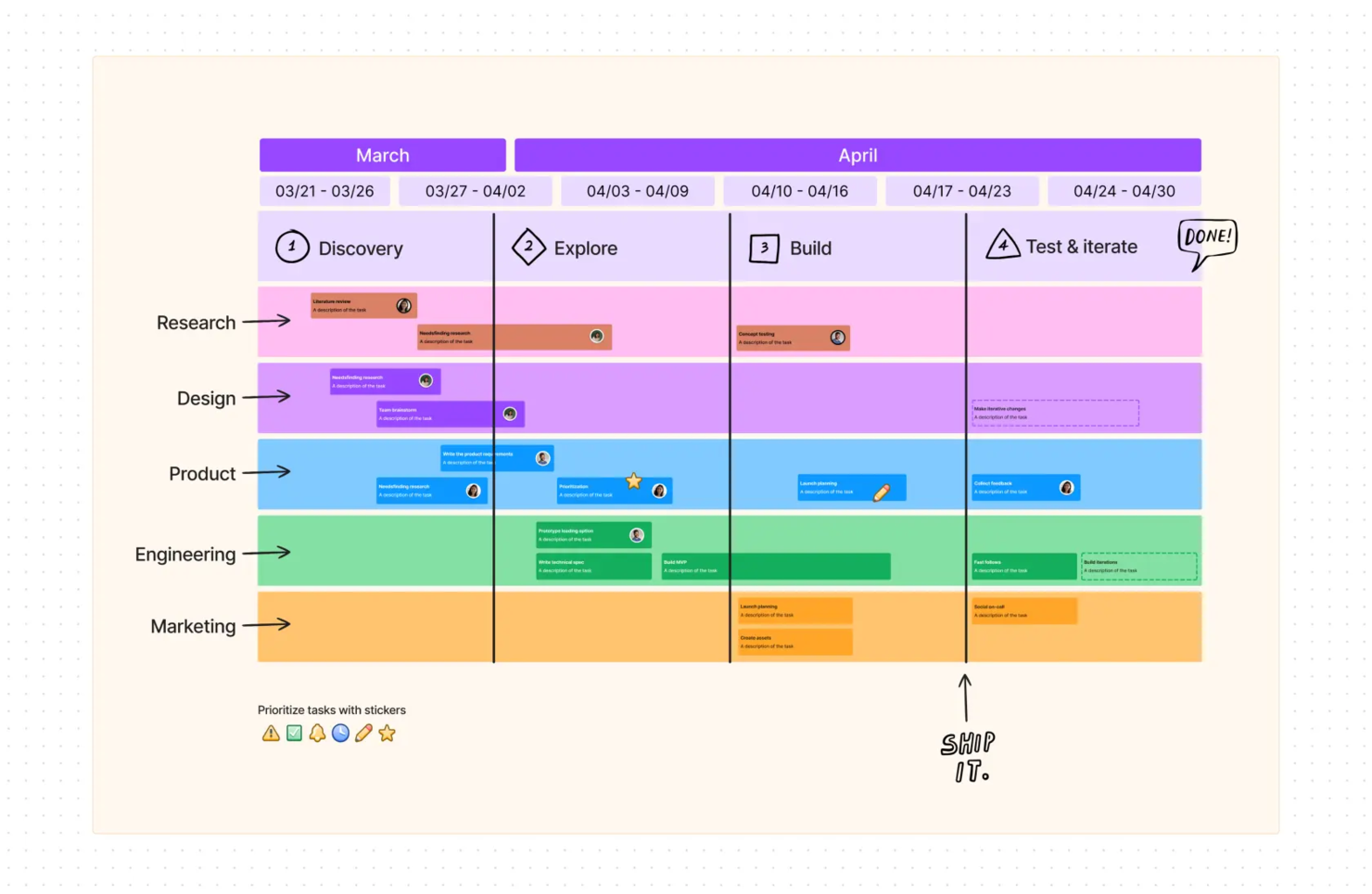
FigJam is a collaborative virtual whiteboard platform, developed by Figma. It's a highly versatile solution that facilitates various types of teamwork including brainstorming, workflow design, and strategic planning.
Why I picked FigJam: I included this tool on my list because of how different it is from traditional project management tools. Where other platforms offer structured Gantt charts, Kanban boards, and task lists, FigJam takes a much more freeform approach. It's essentially a blank canvas, that lets you organize your ideas, thoughts, and plans however makes the most sense for your team.
That said, you won't be totally left to fend for yourself with this software. It offers plenty of ready-made templates for everything from project kickoff brainstorms to project roadmaps, timelines, and flowcharts. You can use these as a starting point to craft your own workflows and outline your project plans.
FigJam Standout Features & Integrations
Features include interactive widgets, such as voting tools and timers, which facilitate decision-making and keep collaborative sessions on track. Its "Sticky Note Groups" feature also allows teams to cluster and organize ideas visually during brainstorming sessions, making it easy to identify themes and priorities.
Integrations include Figma, Microsoft Teams, Asana, Jira, Mixpanel, and Github.
Pros and Cons
Pros:
- User-friendly and intuitive interface
- Integrates with Figma for design collaboration
- Offers community templates for various uses
- Real-time collaboration capabilities
Cons:
- Limited sharing access for non-Figma users
- Onboarding and account support locked to enterprise plan
- No offline access available
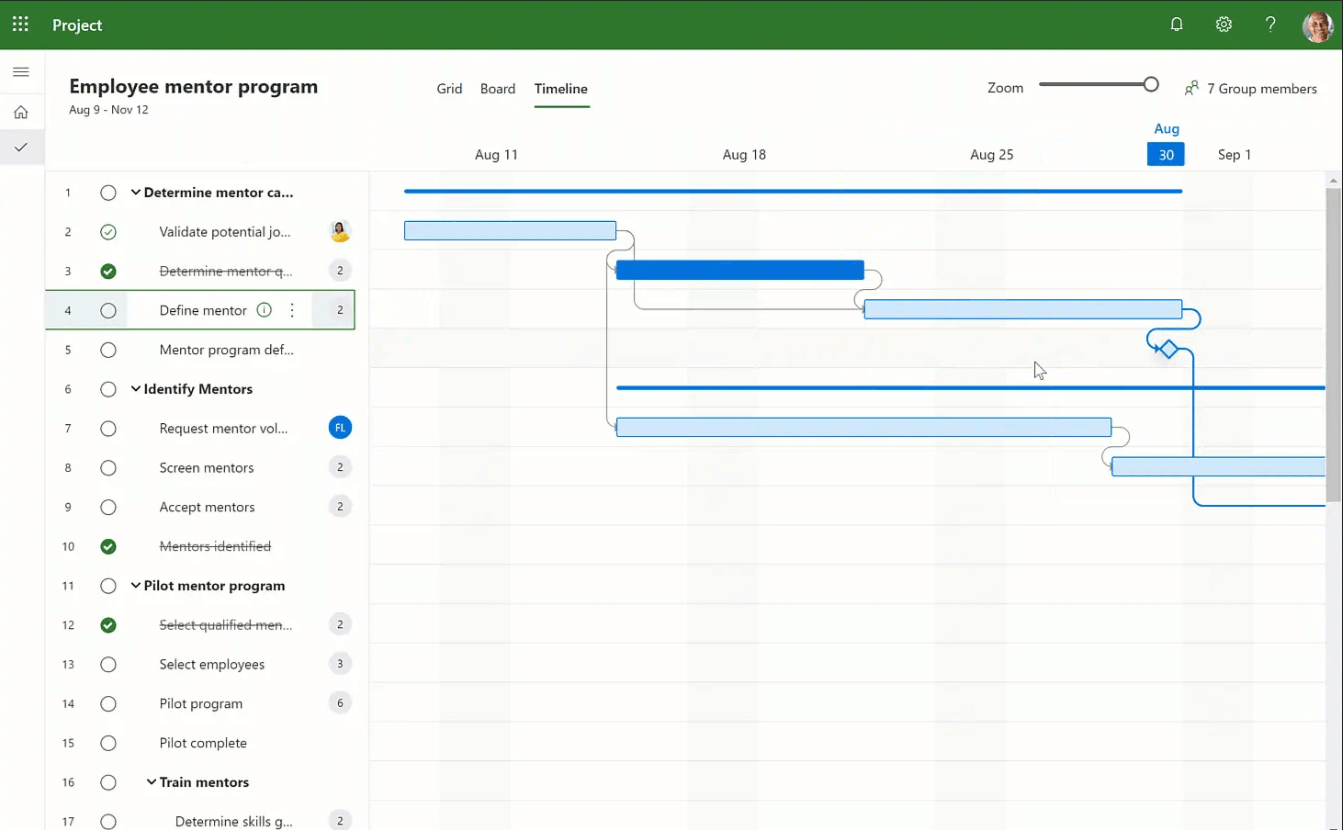
MS Project is Microsoft’s answer to project management. This tool lets users manage agile projects using simple, visual task boards that support Scrum, Kanban, or custom workflows and choose whatever methodology makes sense for the project: agile, waterfall, or hybrid.
Why I picked Microsoft Project: This PM software is particularly easy to use and learn if you are familiar with the Microsoft family of products. Most offices are these days, which is why I decided to include it on my list. Online tutorials and forums can also fill in any gaps, making the learning curve small. Ultimately, I found all of this made it a user-friendly option.
Side note: This is a standard and industry-accepted tool, but it’s not perfect. One downside I found is that it’s not easy to run on iOS. If you like MS Project but are looking for similar options that run on a Mac, I'd suggest evaluating some other options.
Microsoft Project Standout Features & Integrations
Features include a "Team Planner" view that provides a drag-and-drop interface to visualize and adjust resource assignments, making it easy to balance workloads across teams. Additionally, Microsoft Project integrates seamlessly with Power BI, which enables powerful data visualization and analytics to track project performance and inform decision-making with real-time insights.
Integrations include other Microsoft software, like Outlook, Excel, Skype, and more.
Pros and Cons
Pros:
- Integration with other Microsoft software
- Driver prioritization module for ranking strategies/objectives
- Helpful project template descriptions for guidance
- Can generate a Gantt chart from a spreadsheet
Cons:
- Poor customization options
- Steep learning curve
- Limitations on collaboration tools


Dock is a customer and deal management solution that offers tools to support sales, customer onboarding, and ongoing support and collaboration.
Why I picked Dock: The platform provides customizable client-facing portals that not only support the sales and onboarding process, but also ongoing collaboration between your team and your customers. Documents, proposals, quotes, and tasks are centralized in the portals, allowing both parties to access them quickly and easily.
Users can create collaborative project plans with customers and assign tasks to both internal and external team members. Tasks can be customized with checklists, descriptions, images, and links, giving teammates everything they need to work on their deliverables.
Standout Features & Integrations:
Features include an activity tracking feature that allows users to monitor client interactions within the portal, providing insights into engagement and identifying areas needing follow-up. Additionally, Dock supports automated client updates to ensure customers stay informed on project progress without requiring manual communication.
Integrations include HubSpot, Salesforce, Slack, Zoom, Airtable, Pandadoc, Typeform, and more.
Pros and Cons
Pros:
- Engagement analytics to track customer success
- Quotes can be transformed into order forms
- Wide range of templates for standardizing processes
Cons:
- HubSpot and Salesforce integration only available on higher-tier plans
- Order forms are priced as an add-on to your existing plan
Other Project Management Software
Here are some additional project management software options that didn’t make it onto my shortlist, but are still worth checking out:
- Nifty
For milestone tracking
- MeisterTask
For simple project management
- Kintone
For custom applications
- Teamwork.com
For remote teams
- ProjectManager
For real-time project tracking and insights
- ProofHub
For organizing via board and table views
- Jira
For cross-team project tracking
- Planview AdaptiveWork
For enterprise resource planning
- Confluence
For software managers
- awork
UI for usability & intuitiveness
- PSOhub
For integrating project management with CRM
- Tempo Portfolio Manager
For complex projects
- FunctionFox
For creatives
- Basecamp
For centralized project docs
- Easy Projects
For project profitability tracking
- Nutcache
For advanced time tracking
- nTask Manager
For managing multiple projects on a centralized platform
- Ravetree
For client service businesses
- Runn
For project forecasting
- Plaky
For cost-effective project management


Other Types Of Project Management Software
Check out our list of project management tools we've identified and tested with particular features or for specific industry use cases.
Project Management Software for:
- Agile
- Architects
- Construction
- Consultants
- Creative
- Design
- Enterprise
- Free
- Freelancers
- Healthcare
- Individuals
- MacOs Users
- Marketing
- Manufacturing
- Remote teams
- Small Business
- Startups
Project Management Software with:
- Client Portals
- Agile Tracking
- Google Calendar Integrations
- Invoicing
- On-Premise Deployment
- Visual planning
Video Walkthrough of Project Management Tools
Check out our video on the top project management tools:


Selection Criteria for Project Management Software
When selecting the best project management software to include on this list, I considered common buyer needs and pain points like managing complex workflows and ensuring collaboration across departments. I also used the following framework to keep my evaluation structured and fair:
Core Functionality (25% of total score)
To be considered for inclusion on this list, each solution had to fulfill these common use cases:
- Creating and managing tasks
- Assigning tasks to team members
- Tracking project progress
- Setting and monitoring deadlines
- Collaborating on projects
Additional Standout Features (25% of total score)
To help further narrow down the competition, I also looked for unique features, such as:
- AI-driven task prioritization
- Seamless integration with other business tools
- Customizable workflow automation
- Real-time reporting and analytics
- Industry-specific templates
Usability (10% of total score)
To get a sense of the usability of each system, I considered the following:
- An intuitive and well-designed interface
- A minimal learning curve for new users
- Responsive performance for large projects
- Mobile and desktop accessibility
- Clear and easy navigation
Onboarding (10% of total score)
To evaluate the onboarding experience for each platform, I considered the following:
- Step-by-step onboarding guides
- Interactive product tours
- A library of video tutorials and documentation
- Customizable templates to get started quickly
- Regular webinars or live training sessions
Customer Support (10% of total score)
To assess each software provider’s customer support services, I considered the following:
- 24/7 support channels
- A detailed and up-to-date knowledge base
- Live chat support for real-time assistance
- Timely responses to support tickets
- Access to a community forum for peer support
Value For Money (10% of total score)
To evaluate the value for money of each platform, I considered the following:
- Transparent and flexible pricing plans
- Essential features included in the base plan
- Scalable options for growing teams
- Cost balanced with functionality and performance
- A free trial or money-back guarantee
Customer Reviews (10% of total score)
To get a sense of overall customer satisfaction, I considered the following when reading customer reviews:
- Ease of use highlighted in user feedback
- Emphasis on tool reliability
- Mentions of exceptional customer support
- Consistent updates and feature improvements
- Overall value based on user sentiment
How to Choose Project Management Software
It’s easy to get bogged down in long feature lists and complex pricing structures. To help you stay focused as you work through your software selection process, here’s a checklist of factors to keep in mind:
| Factor | What to Consider |
| Scalability | Ensure the software can grow with your team by handling increased projects, users, and data without a performance drop. |
| Integrations | Look for tools that connect seamlessly with apps your team already uses, like Slack, Zoom, or Salesforce. |
| Customizability | Check if you can tailor workflows, dashboards, and reports to match your team’s unique processes. |
| Ease of Use | Choose a platform that’s intuitive, minimizes training time, and boosts adoption across your team. |
| Budget | Factor in upfront costs, ongoing fees, and hidden charges. Choose software that offers strong value for its price. |
| Security Safeguards | Prioritize tools with strong encryption, user permissions, and compliance with industry standards to protect your data. |
| Collaboration Tools | Look for features like real-time editing, comments, and shared dashboards to streamline team communication. |
| Support Options | Consider the availability of live chat, phone support, or help centers to resolve issues quickly. |
It's a lot to digest—and there's a lot of pressure to get it right—so I suggest using our project management software advisory service to help shortlist tools that fit your organization’s needs.
Trends in Project Management Software
In my research, I sourced countless product updates, press releases, and release logs from different project management software vendors. Here are some of the emerging trends I’m keeping an eye on:
- AI-Powered Resource Forecasting: More tools now use AI to predict resource needs, which helps teams allocate staff and budgets more accurately. Workload balancing and demand forecasting are becoming standard to boost efficiency and avoid burnout.
- Hybrid Work Adaptability: Platforms are adding support for both remote project management and in-office project management, including async communication, virtual workspaces, and adaptable workflows.
- Scenario Planning for Risk Management: Advanced tools now let users model outcomes based on variables like budget shifts or delays. This helps teams spot risks and adjust plans early, which is ideal for complex timelines or supply chain issues.
- Embedded Financial Tracking: More platforms now include financial tracking within project workflows. This allows teams to manage budgets, expenses, and profits across multi-project, cost-sensitive businesses without relying on separate accounting tools.
- Sustainability Metrics: Some tools now offer dashboards with carbon tracking and sustainability analytics. These help teams measure energy use, waste, and emissions to meet CSR and environmental goals.
What is Project Management Software?
Project management software is a digital tool that helps users plan, organize, assign, and track work to complete projects more efficiently.
It lets users schedule tasks, set deadlines, allocate resources, manage budgets, and communicate efficiently. From basic task tracking to complex, multi-phase projects. Web based project management software centralizes information and automates routines to enhance coordination, accountability, and execution across industries.
Features of Project Management Software
When selecting project management software, keep an eye out for the following key features:
- Task management: Create, assign, and track tasks for yourself and your team. Project management software lets you break big projects into bite-sized chunks, so no detail slips through the cracks. You can set deadlines, add descriptions, and check off completed work to keep everything organized and moving forward.
- Collaboration tools: Communicate and share updates directly within your project workspace. With built-in chat, comment threads, or file sharing, you can collaborate with teammates in real time—avoiding endless email chains and making it easy to keep everyone on the same page.
- Time tracking: Log hours spent on specific tasks or entire projects. This helps you see where your time goes, set more accurate project estimates, and make sure deadlines (and actual effort) line up. It’s particularly handy for freelancers or teams that bill by the hour.
- Resource management: Allocate people, tools, and budgets efficiently. Resource management features help you avoid overallocation, spot pinch points before they cause problems, and ensure everyone has what they need to get work done without burnout or bottlenecks.
- Document management: Store, organize, and access project documents in one central spot. Instead of hunting for files in random email threads, you can keep everything—from proposals to meeting notes—right where your team needs it, with version control and permissions for extra security.
- Gantt charts and timelines: Visualize your project’s schedule and dependencies with easy-to-read charts. Gantt charts let you see how tasks overlap, spot risks, and shift timelines as needed—all with a quick drag-and-drop.
- Reporting and analytics: Generate reports on project progress, resource usage, deadlines, and more. These insights help you spot trends, measure success, and make data-driven decisions so you can improve future projects.
- Integration capabilities: Connect your project management software to other apps you use, like email, calendar, or file storage services. This cuts down time spent switching between tools and keeps your workflow seamless.
Common Project Management Software AI Features
Beyond the standard project management software features listed above, many of these solutions are incorporating AI with features like:
- Automated scheduling: AI analyzes workloads and priorities to suggest the best meeting times or project deadlines. It takes into account everyone’s availability and task dependencies, saving you from back-and-forth calendar gymnastics.
- Predictive project analytics: By examining historical data, AI forecasts potential risks or delays before they become major issues. You get heads-up alerts and recommendations, so you can address problems proactively—not after they blow up.
- Natural language processing for task creation: Just type or speak your project needs, and AI will automatically create, categorize, and assign tasks. This speeds up planning when you’re juggling lots of details.
- Resource optimization: AI monitors your team’s workload and skillsets, then recommends how to distribute tasks most efficiently. That way, you make the most of everyone’s strengths and avoid both burnout and boredom.
- Insightful reporting: AI sifts through all your project data to surface the most important insights, trends, and bottlenecks. You get clear, actionable summaries without having to dig through piles of numbers.
- Smart document management: AI organizes and tags your project documents, making it easier to find what you need instantly—even if you forgot the exact file name. This keeps everyone out of “upload/download purgatory.”
Benefits of Project Management Software
Implementing project management software tools can provide several benefits for your team and your business. Here are a few you can look forward to:
- Enhanced Collaboration: Project management tools foster teamwork by offering a central platform for communication, file sharing, and updates. This streamlines communication and keeps everyone aligned.
- Improved Project Planning: Strong planning features—like scheduling, resource allocation, and milestone tracking—help users build realistic, achievable project plans.
- Better Resource Management: Users can monitor availability, manage workloads, and avoid over-allocation to ensure efficient use of people and materials.
- Enhanced Risk Management: Built-in tools for risk assessment, tracking, and response planning help teams minimize potential project disruptions.
- Data-Driven Decision-Making: Real-time data and analytics support informed decisions by tracking metrics, spotting trends, and making timely adjustments.
Costs & Pricing for Project Management Software
Selecting project management software requires an understanding of the various pricing models and plans available. Costs vary based on features, team size, add-ons, and more. The table below summarizes common plans, their average prices, and typical features included in project management software solutions:
Plan Comparison Table for PM Software
| Plan Type | Average Price | Common Features |
|---|---|---|
| Free | $0 | Task management, basic reporting, limited user access, limited storage |
| Basic | $7 - $15 per user/month | Enhanced task management, project templates, file sharing, basic integrations, all features of Free plan |
| Intermediate | $20 - $30 per user/month | Advanced reporting, customizable dashboards, more users and storage, additional integrations, all features of Basic plan |
| Advanced | $30+ per user/month | Resource management, advanced security, premium support, API access, customizable features, all features of Intermediate plan |
As a rule of thumb, smaller teams or those new to project management should start with a Basic or Free plan for essential features without added complexity. As your team grows or needs change, upgrading to Intermediate or Advanced plans unlocks more tools and advanced customization.
Common stages where your company may want to upgrade include:
- Team Expansion: Hiring more staff or forming new teams may exceed user limits in the current plan.
- More Projects: Managing multiple projects at once often requires advanced features and greater data capacity.
- Advanced Features: Needing tools like enhanced reporting or stronger security can justify moving to a higher pricing tier.
- Storage Needs: More project files may require increased storage and better file management.
- Client Management: Growing client bases often demand advanced client tools found in higher-tier plans.
Project Management Software FAQs
Here are some of the frequently asked questions I receive about project management software.
How can I get my team to adopt new project management software?
Involve your team early in the selection process and explain the benefits clearly. Offer hands-on training and assign a “champion” to answer questions. Start with a core group, gather feedback, and refine your approach before a full rollout. Celebrating quick wins—like time saved or better collaboration—encourages ongoing use.
What mistakes should I avoid when choosing project management software?
Don’t pick a tool just because it’s popular—focus on your team’s needs and workflows. Avoid underestimating setup and training time, and don’t ignore your team’s input during evaluation. Skipping integration checks or neglecting to review security features can lead to adoption issues or data risks down the line.
Should I pick project management software based on my methodology?
Yes, it’s best to select software that supports your preferred methodology, like Agile, Scrum, or Waterfall. Some tools are designed for specific approaches, while others are more flexible. Make sure the platform can handle your team’s process, terminology, and reporting needs.
How do I roll out new project management software for my team?
Start by setting clear goals and outlining your team’s workflow needs. Pick a software that matches those requirements. Next, import data or set up new projects, and train your team using built-in guides or tutorials. Assign roles, set permissions, and configure integrations with other tools your team uses. Monitor adoption and gather feedback to adjust settings and workflows for a smoother rollout.
How do I connect project management software with my other tools?
Most project management software connects with popular apps like Slack, Google Drive, and Microsoft Teams using built-in integrations or third-party connectors like Zapier. You’ll usually link your accounts in settings, then set rules for how tasks or files sync between systems. This helps automate workflows and keeps your team working in one place.
Can I migrate data from one project management tool to another?
Yes, most leading project management software offers data import features, letting you bring over tasks, users, attachments, and project histories. Check for CSV import options, direct integrations, or dedicated migration tools provided by the vendor. Some companies also offer onboarding support or services to help you transfer data without losing important information.
How do I scale project management software as my team grows?
Look for platforms with customizable permissions, advanced user roles, and the ability to manage multiple projects or portfolios. Make sure the software supports increased storage, robust reporting, and integrations your team will need as it grows. Review pricing tiers and add-ons, since costs often rise with more users or advanced features.
Security and Data Privacy Within Project Management Software
Security and data privacy are critical in online task management tools to protect sensitive information, comply with regulations, and build trust. They also help prevent unauthorized access, maintain data integrity, ensure business continuity, and reduce internal and external threats.
Therefore, improper security measures mean that data is vulnerable to unauthorized access, theft, or breaches, which can potentially lead to significant financial and reputational damage.

Here are some of the security features you can expect to see:
- Compliance with European standards: GDPR revolutionized how SaaS companies manage customer data privacy. Most now rely on major hosting providers like Amazon and use globally distributed servers to meet regional compliance requirements.
- Data encryption: Data encryption keeps your information hidden from 3rd parties, both in transit and at rest. This means your information is protected while being sent or stored.
- Security certifications: Expect the vendor to be certified in ISO 27001, SOC2 Type I, Type II, CSA STAR, or similar credentials.
Some vendors are more transparent than others about their security and privacy practices, but all should have them in place. If the details aren’t clear, be sure to ask during your demo call.
What's Next?
Choosing a project management software can be tough. If you need more information about a specific use case, you can always schedule a demo with the vendor to see how the tool might address your challenges.
The Digital Project Manager has tons of useful content to help you win at work! You can stay up to date by subscribing to the Insiders Newsletter. New content and interesting PM-related conversations will drop into your inbox every week.